
Features
Every feature, by moment.
Before, during and after the meeting, plus Projects, Talk, and the privacy choices underneath all of it.
Start
Ready for your first meeting in 5 minutes
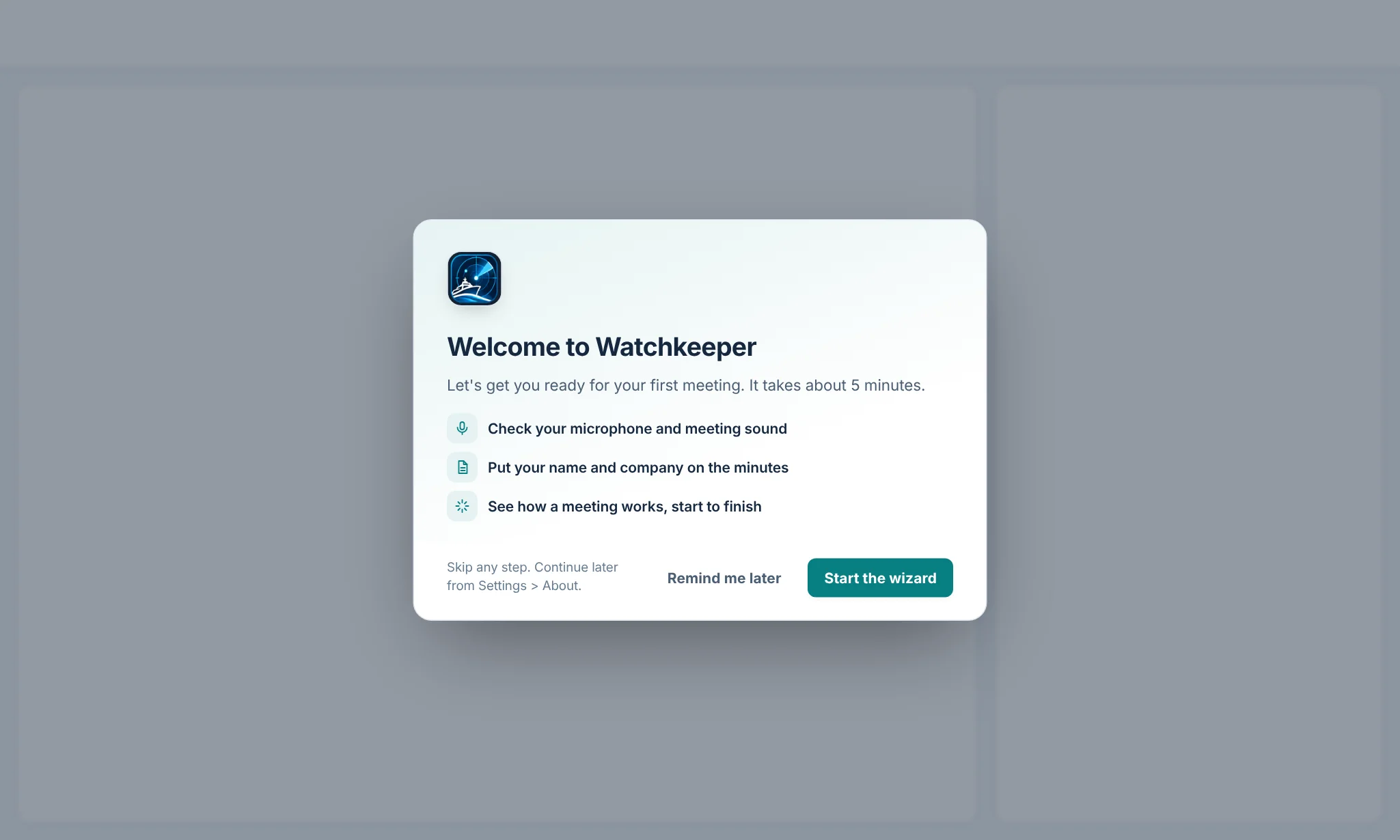
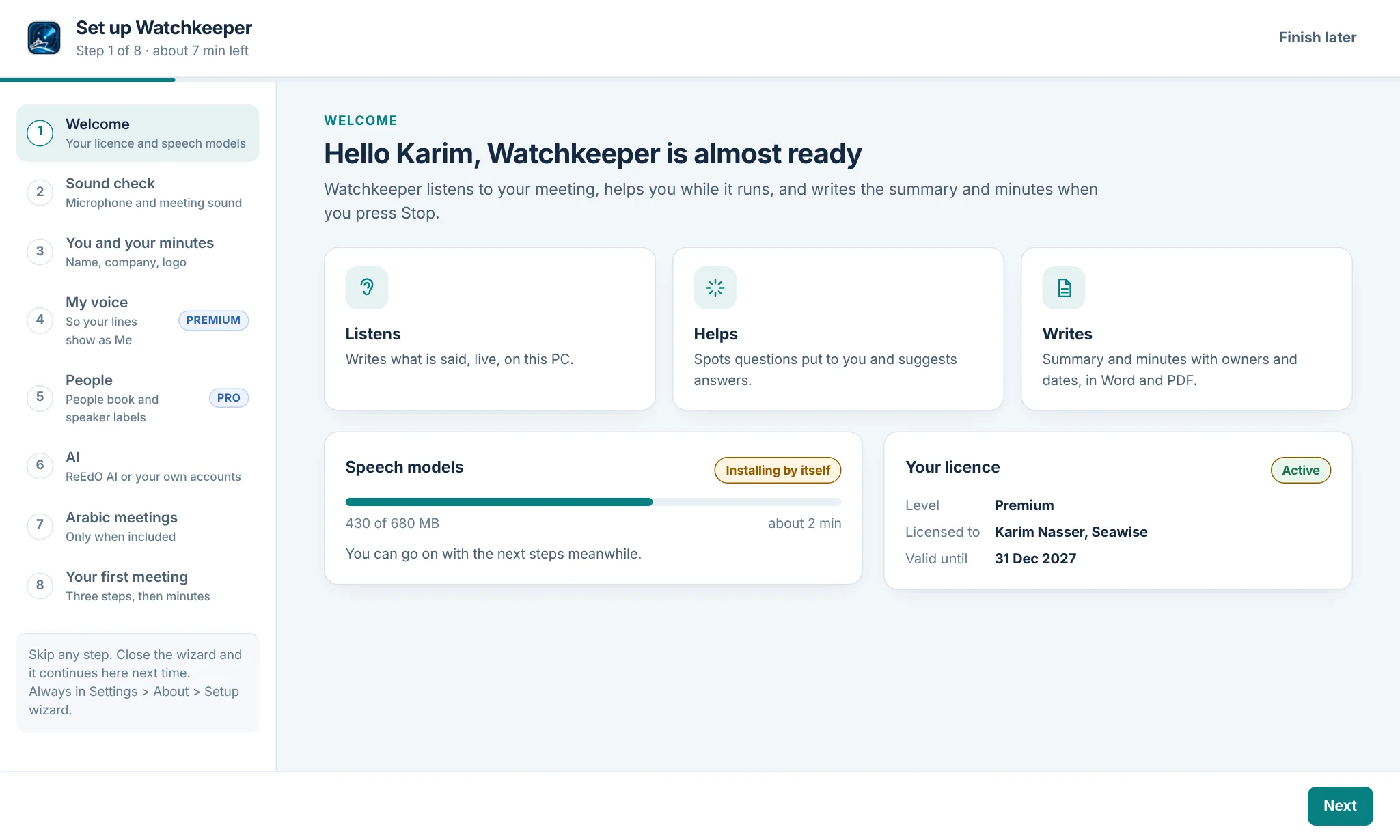
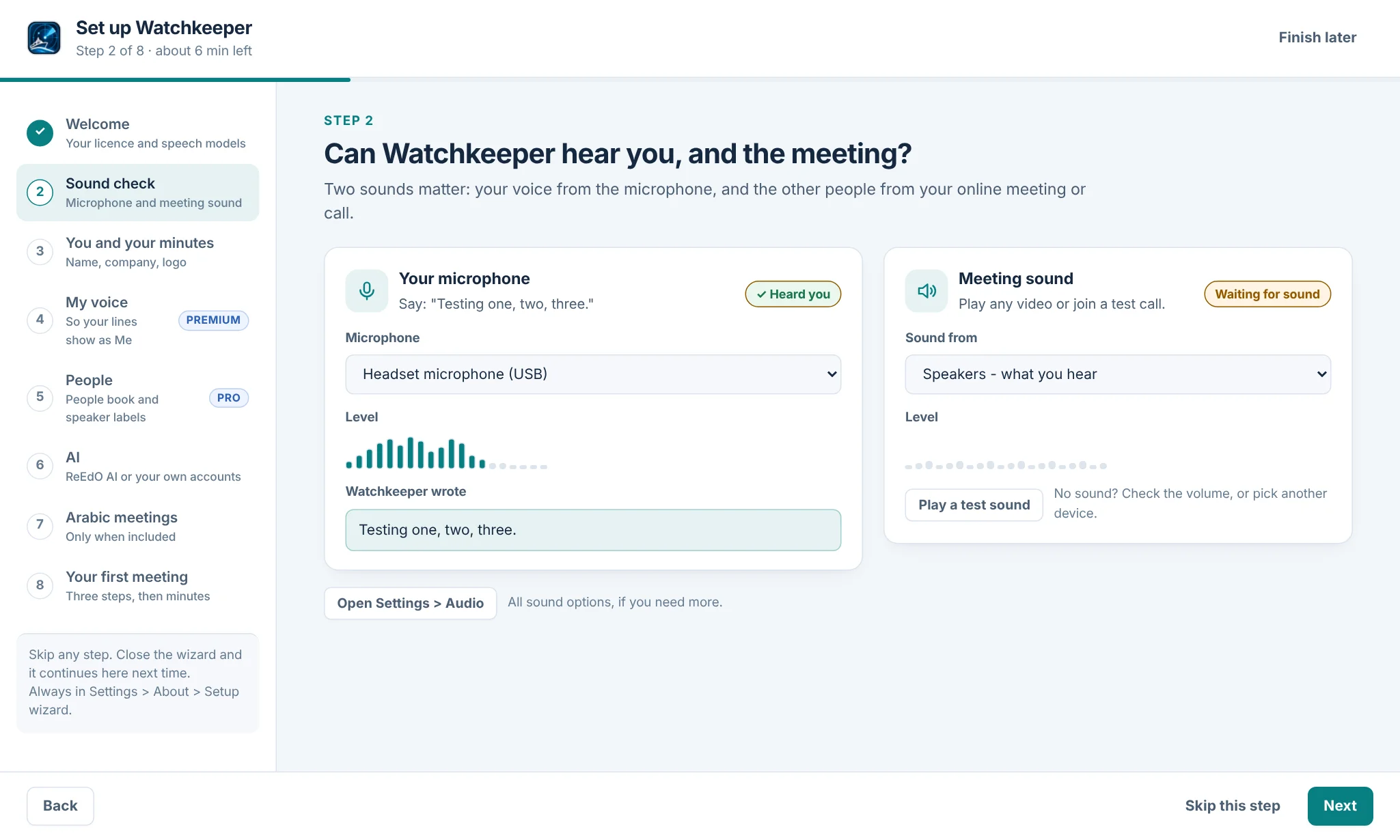
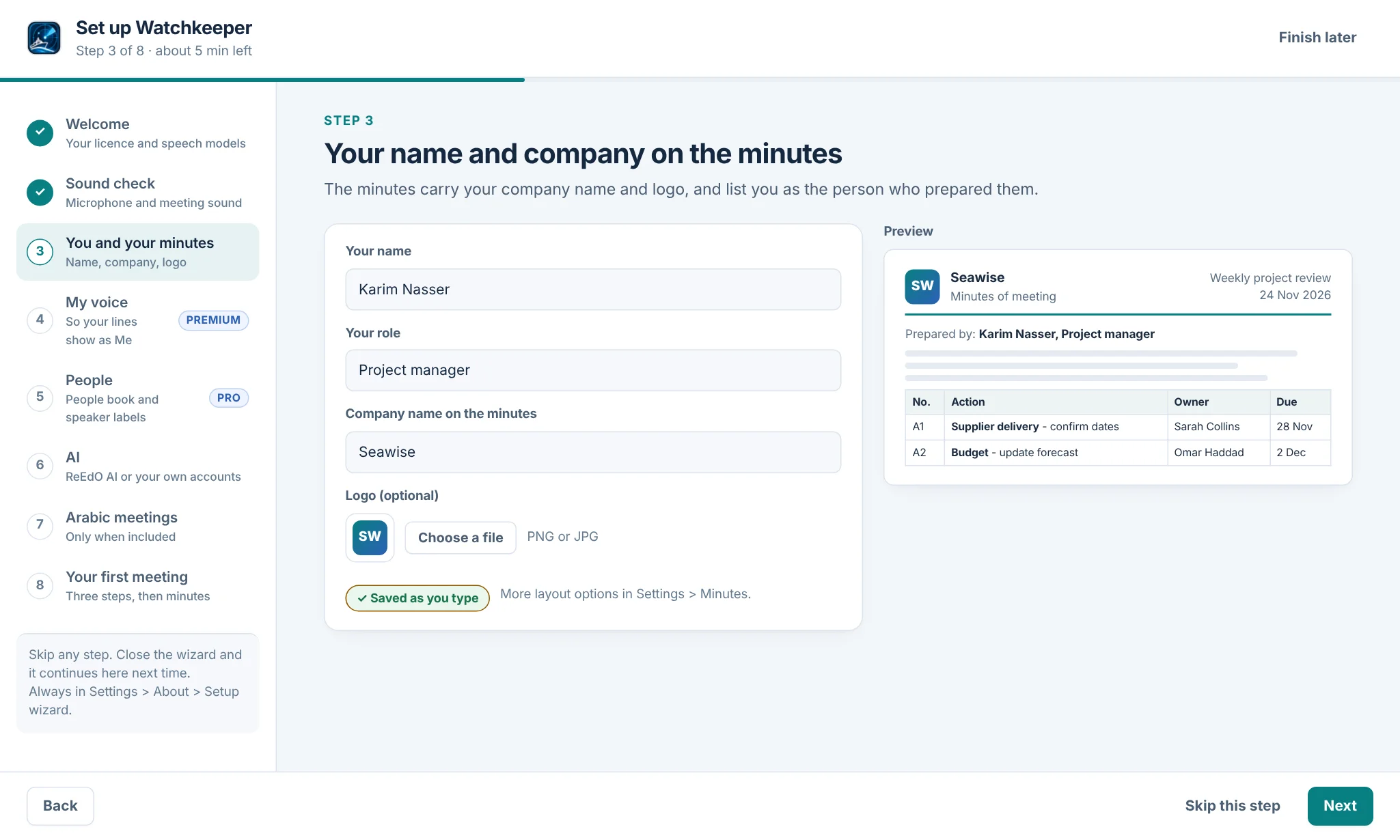
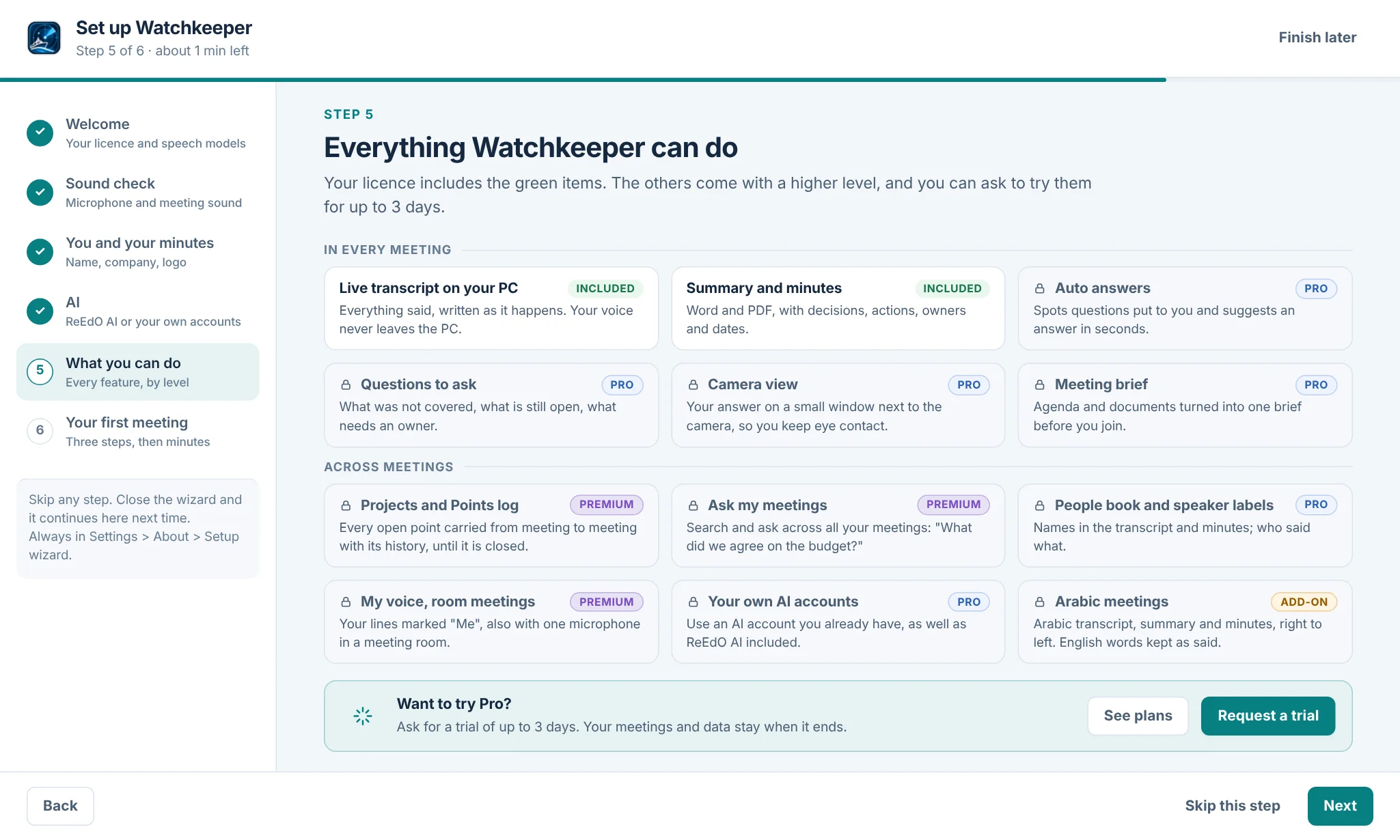
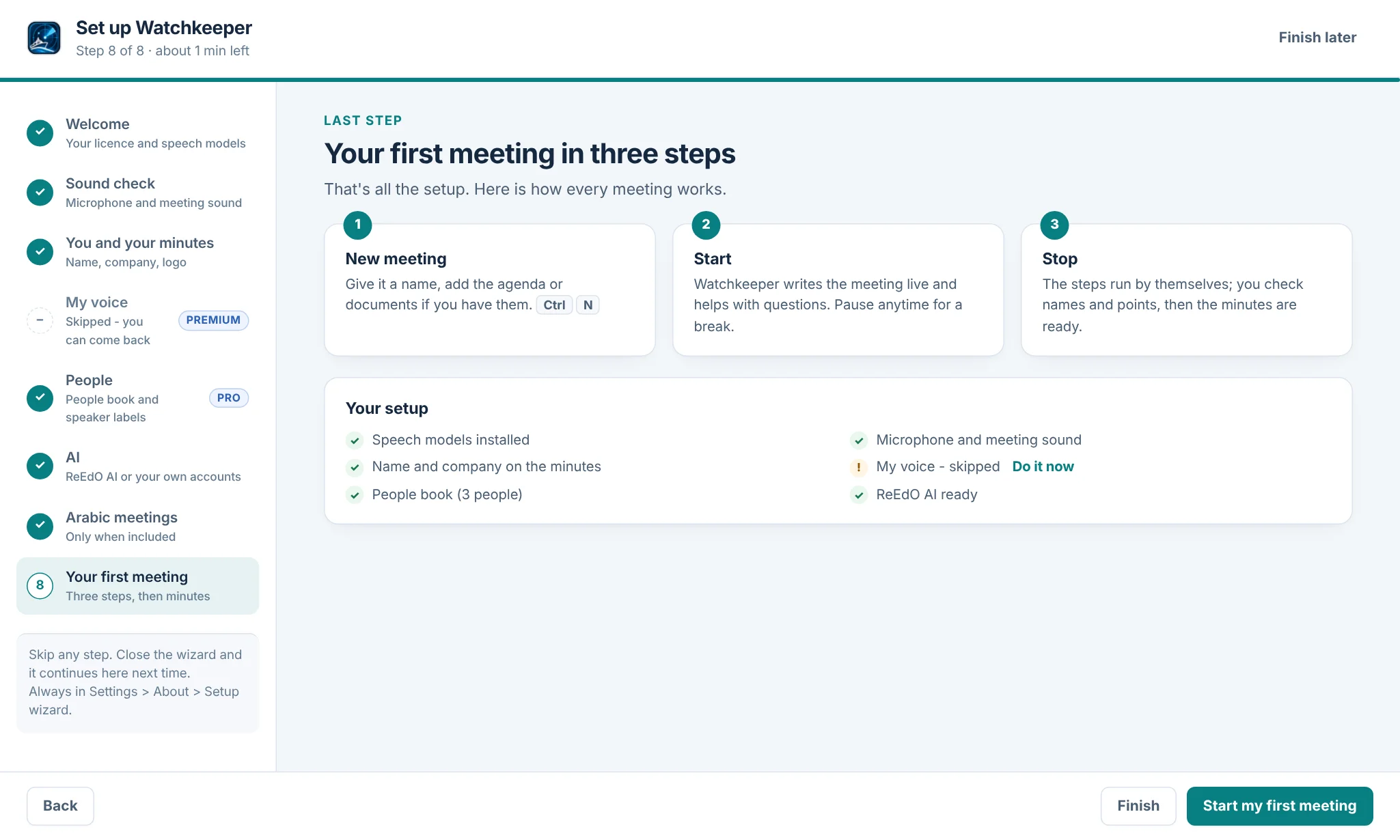
After you install Watchkeeper, a short setup wizard guides you: check your microphone and meeting sound, put your name and logo on the minutes, add the people you meet often, and see how a meeting works from start to finish. Skip any step, and come back to it whenever you like.
Setup wizard
A few short screens, once.
Every step can be skipped and finished later; the wizard stays in Settings > About.
Slide 1 of 6
Before the meeting
Start
Ready in minutes
Install, accept the terms, and Watchkeeper sets itself up. The speech models download in the background while you look around. No internet on that PC? Use the model pack from ReEdO.
Start
Starts quietly with Windows
Watchkeeper waits in the tray when your PC starts. Open it when you need it.
Before
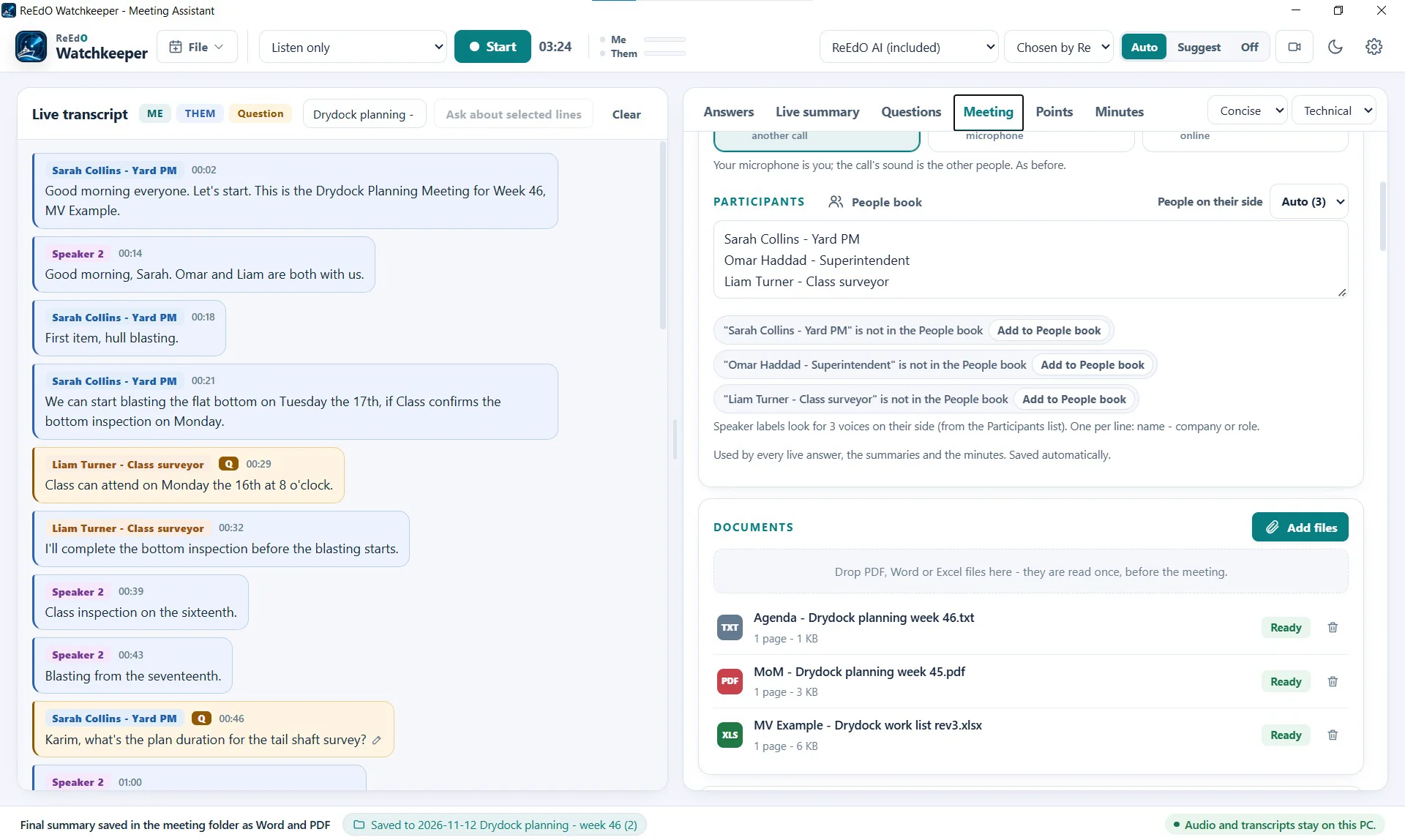
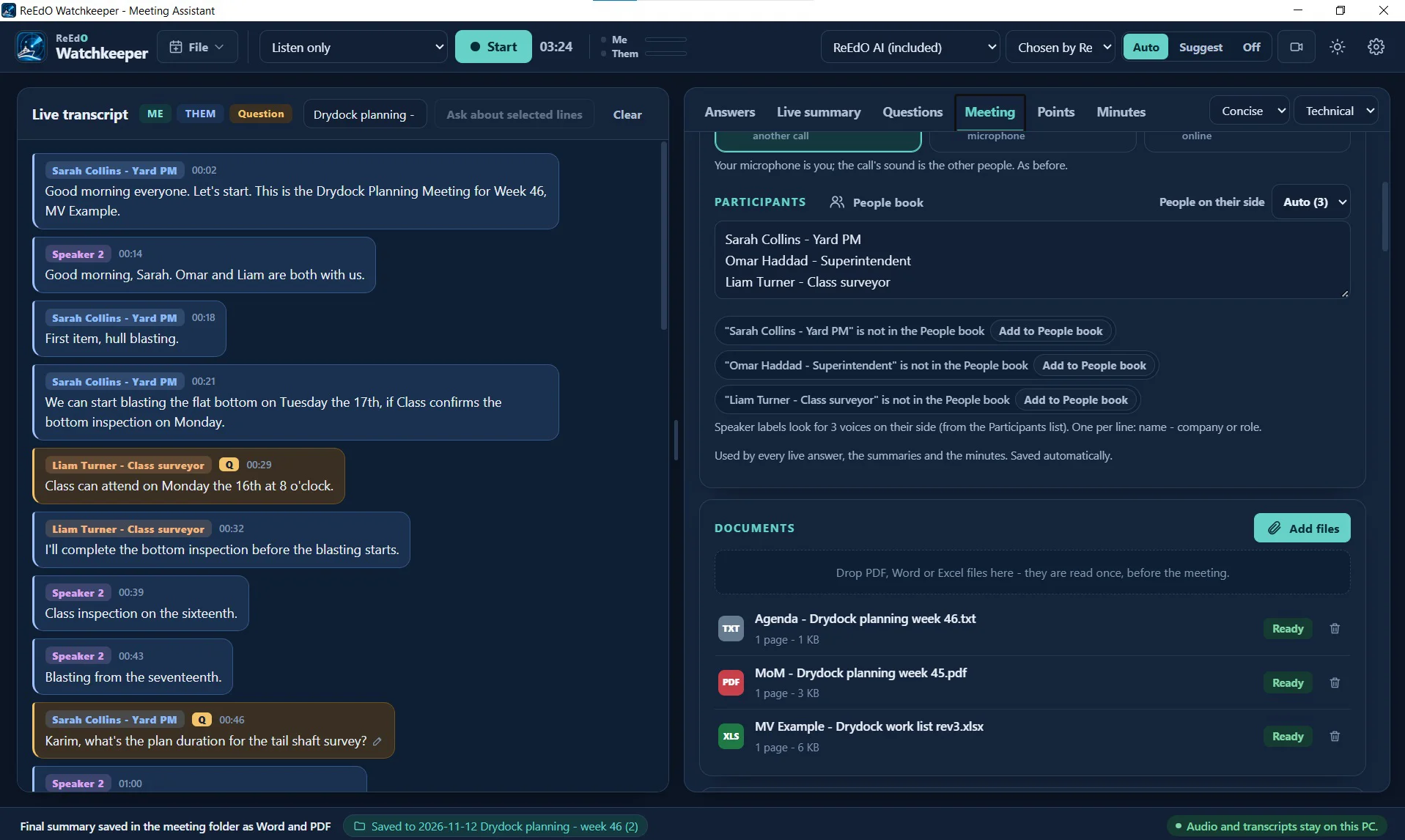
Meeting workspace
Every meeting gets its own workspace: the brief, the agenda, the documents and the people, kept together.
Before
Brief and agenda
Keep the short brief and the agenda in the meeting, so the assistant knows what the meeting is for.
Before
Documents
Add PDF, Word and Excel files. Watchkeeper reads them so the answers and the minutes use the right context.
Before
Meeting brief from documents
The assistant turns the agenda and documents into one page: what is being decided, what to watch for, and who is involved.
Before
Questions to ask
A list of questions worth asking, prepared from the brief, the agenda and your role in the meeting.
Questions to ask
Honest placeholder. The real capture arrives in the media milestone.
Before
Participants and People book
Keep the people you meet with, with their company and role, so names are spelled the same way in every meeting.
Participants and People book
Honest placeholder. The real capture arrives in the media milestone.
During the meeting
During
One AI, your choice
Use ReEdO AI, included with your licence, or connect your own AI accounts. Watchkeeper uses one at a time and shows you which one is working. Switch with one click.
One AI, your choice
Honest placeholder. The real capture arrives in the media milestone.
During
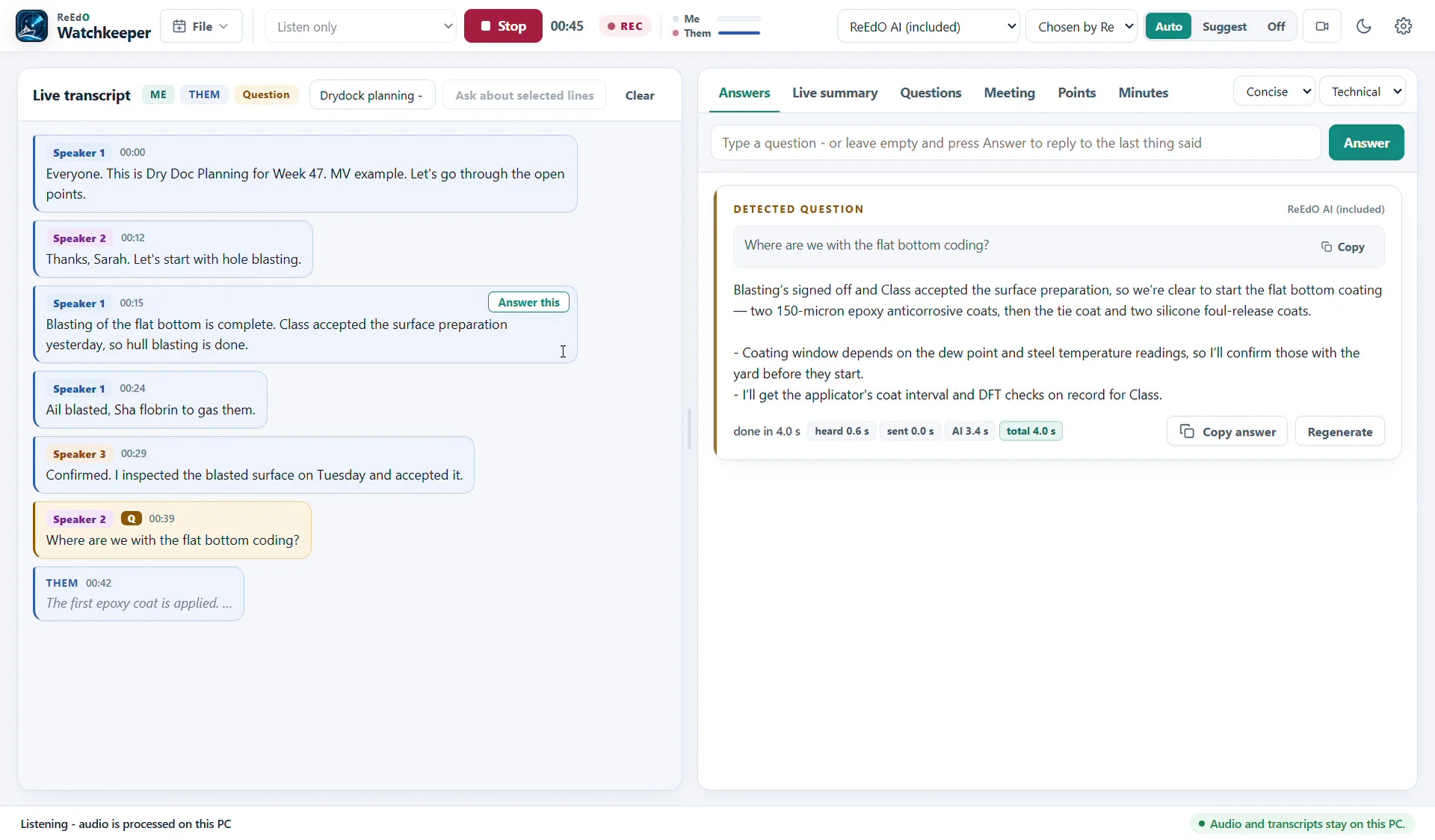
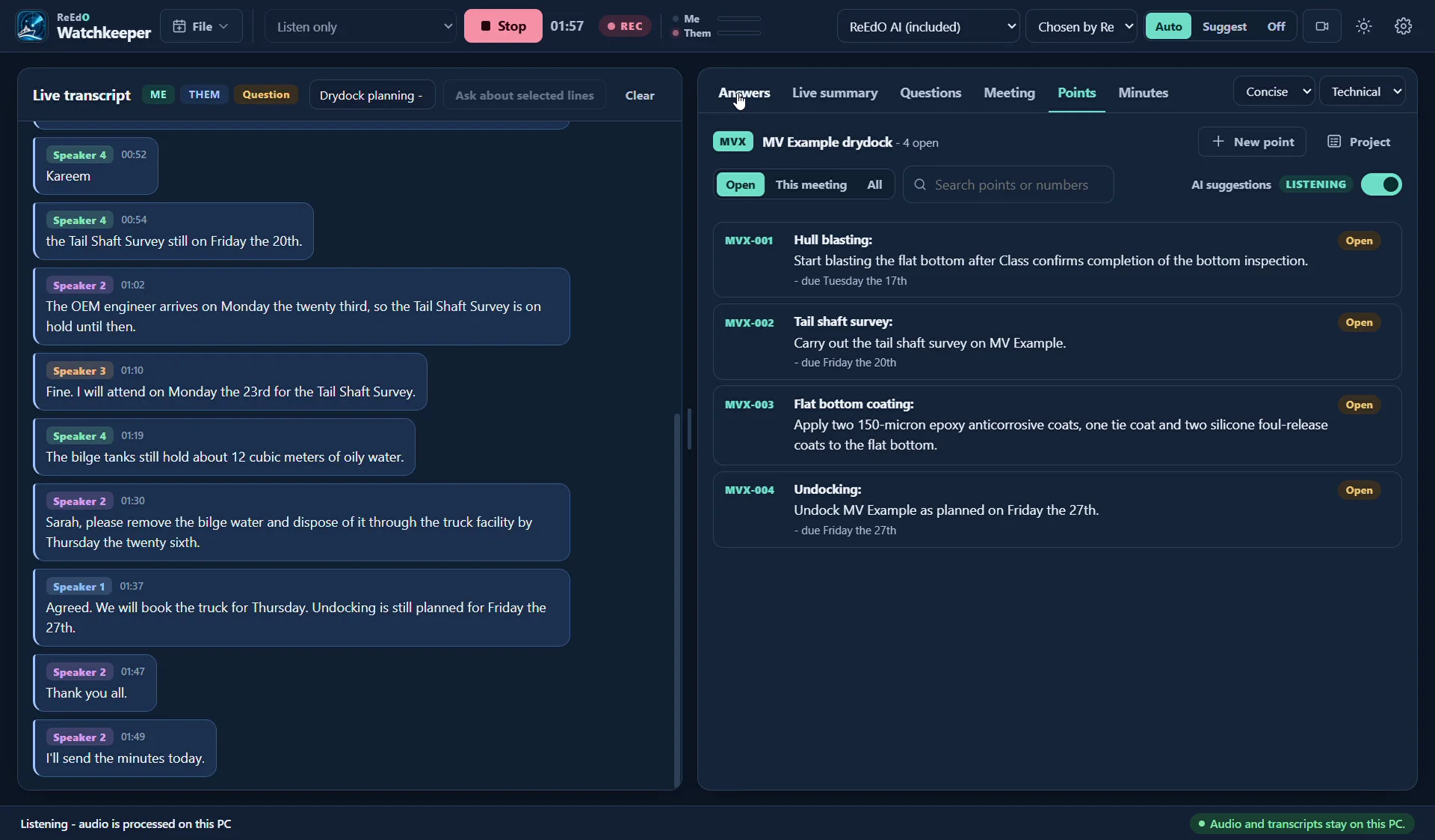
Live transcript on your PC
Speech is written to text as people speak, on your own computer. Nothing is uploaded to become a transcript. Long talk is no longer cut mid-word, and short hesitations no longer split a sentence.
During
Pause when you need it
Coffee break or a side talk? Press Pause. Nothing is recorded, transcribed or sent until you press Resume. Forgot? Auto pause stops after a long silence and goes on by itself when someone speaks.
During
Nothing lost on screen
Every finished line keeps three versions: the grey live text, the second listening and the merged line. After Stop, a clean-up listen checks every line again from the recording. Hover to see every version. If the second listening loses words, the live text stays.
During
One clean line
About 15–60 seconds after a line ends, differently heard versions are merged into one - only with words that were heard, or names from your meeting. An invalid merge is refused and the grey live text stays. Hover to see every version.
During
PremiumPoints tab
With Highlight discussed points switched on, open points are marked Discussed, with the supporting sentence and its time. Nothing is suggested or changed during the meeting; the marks become hints for the reasoning pass afterwards. You can add a point by hand at any time.
Points tab
Honest placeholder. The real capture arrives in the media milestone.
During
Question detection
A question put to you is spotted in the conversation and marked, so you never lose the thread.
During
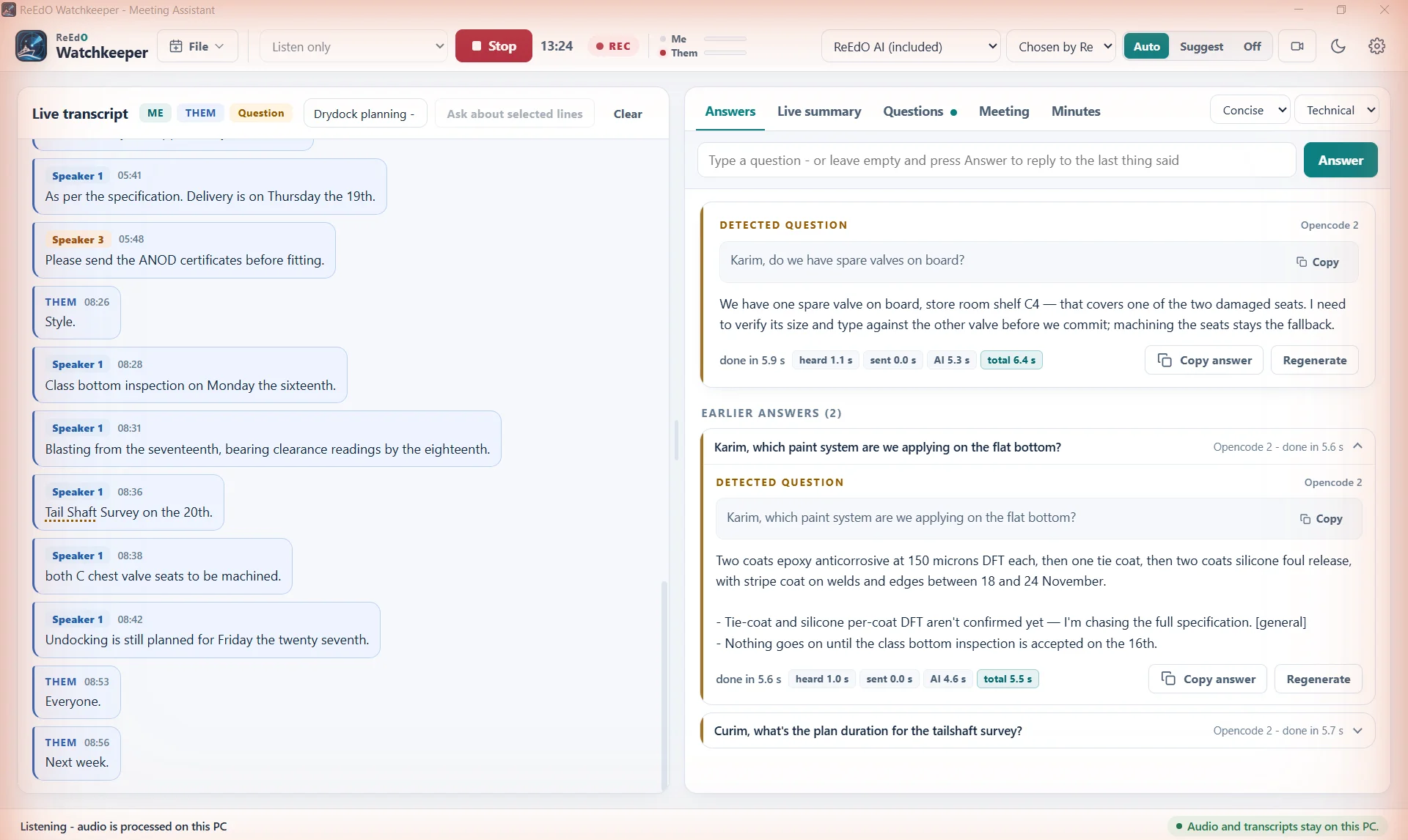
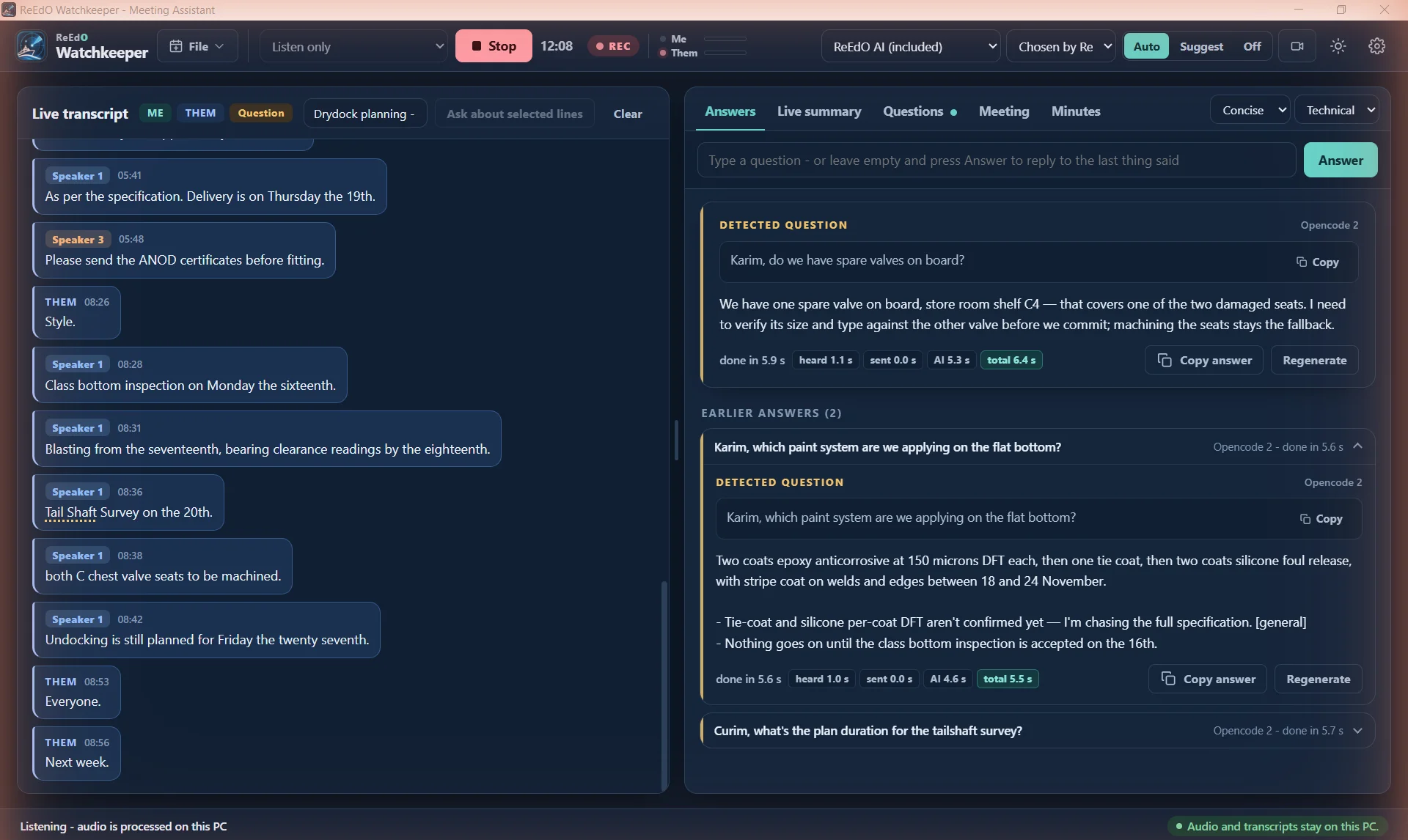
Live answers: Auto and Suggest
Choose Auto to show the answer straight away, or Suggest to open a short suggestion first. Either way the answer uses the meeting context.
During
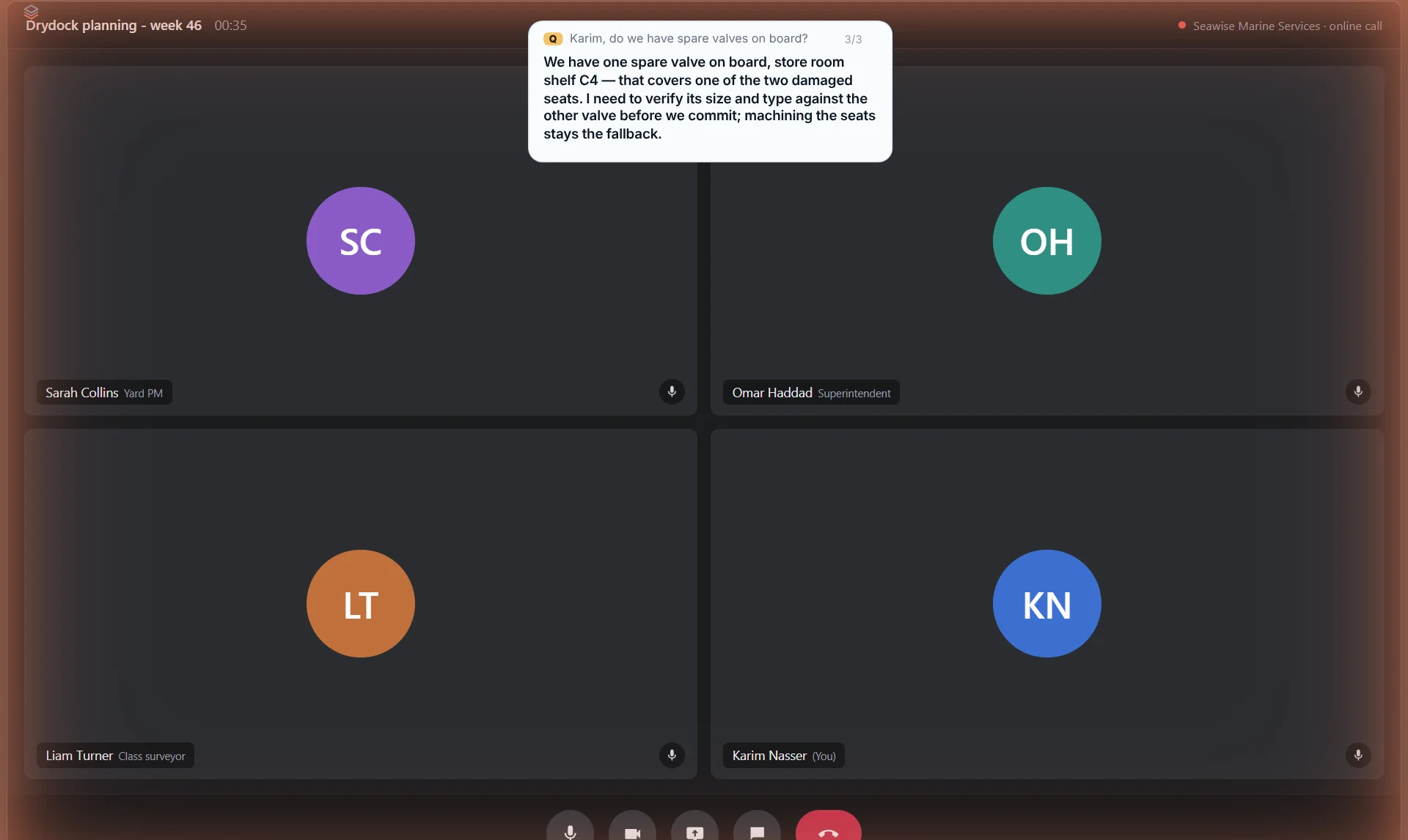
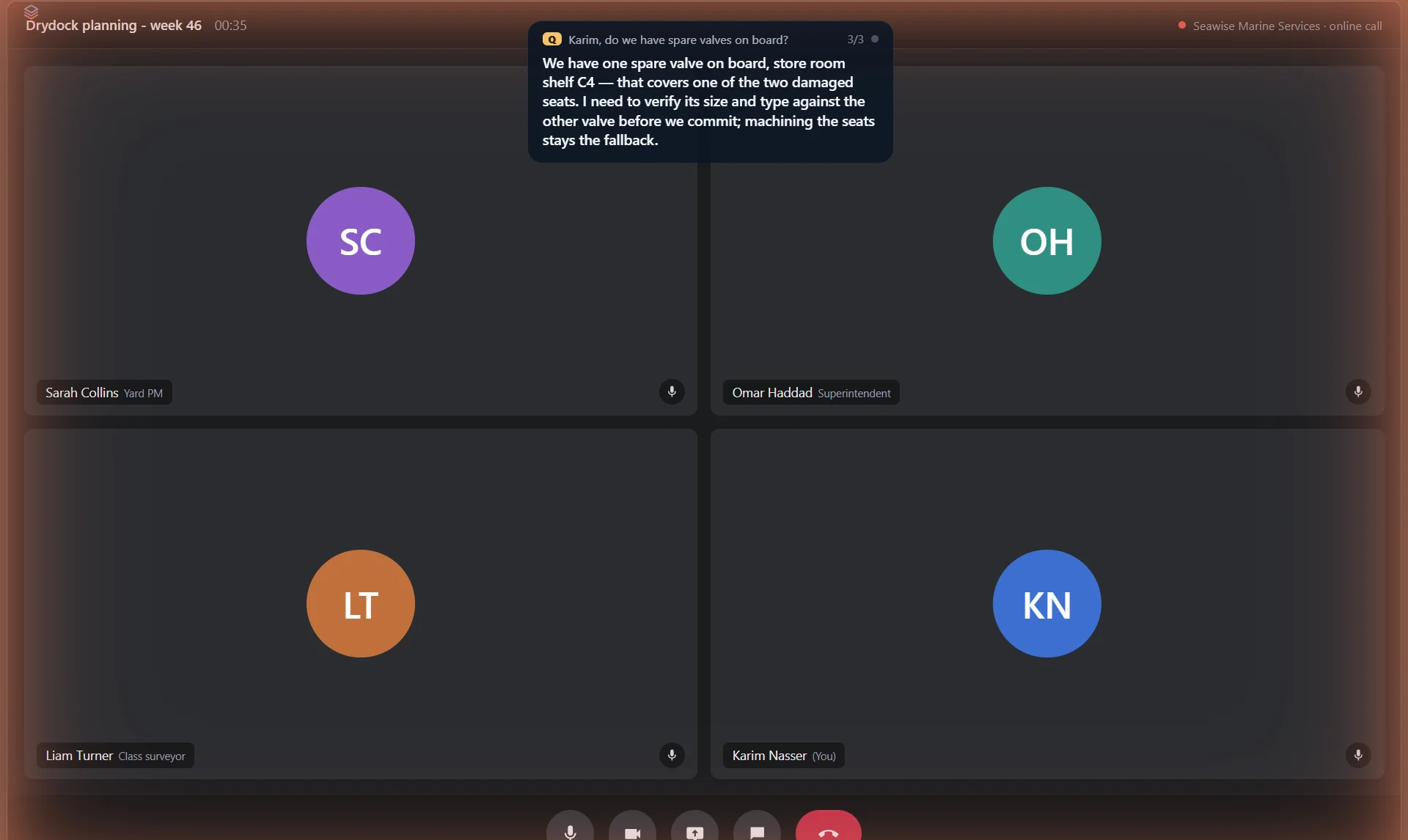
ProCamera view
The answer appears in a small window under your webcam, so you keep eye contact and it stays out of a shared screen or recording.
During
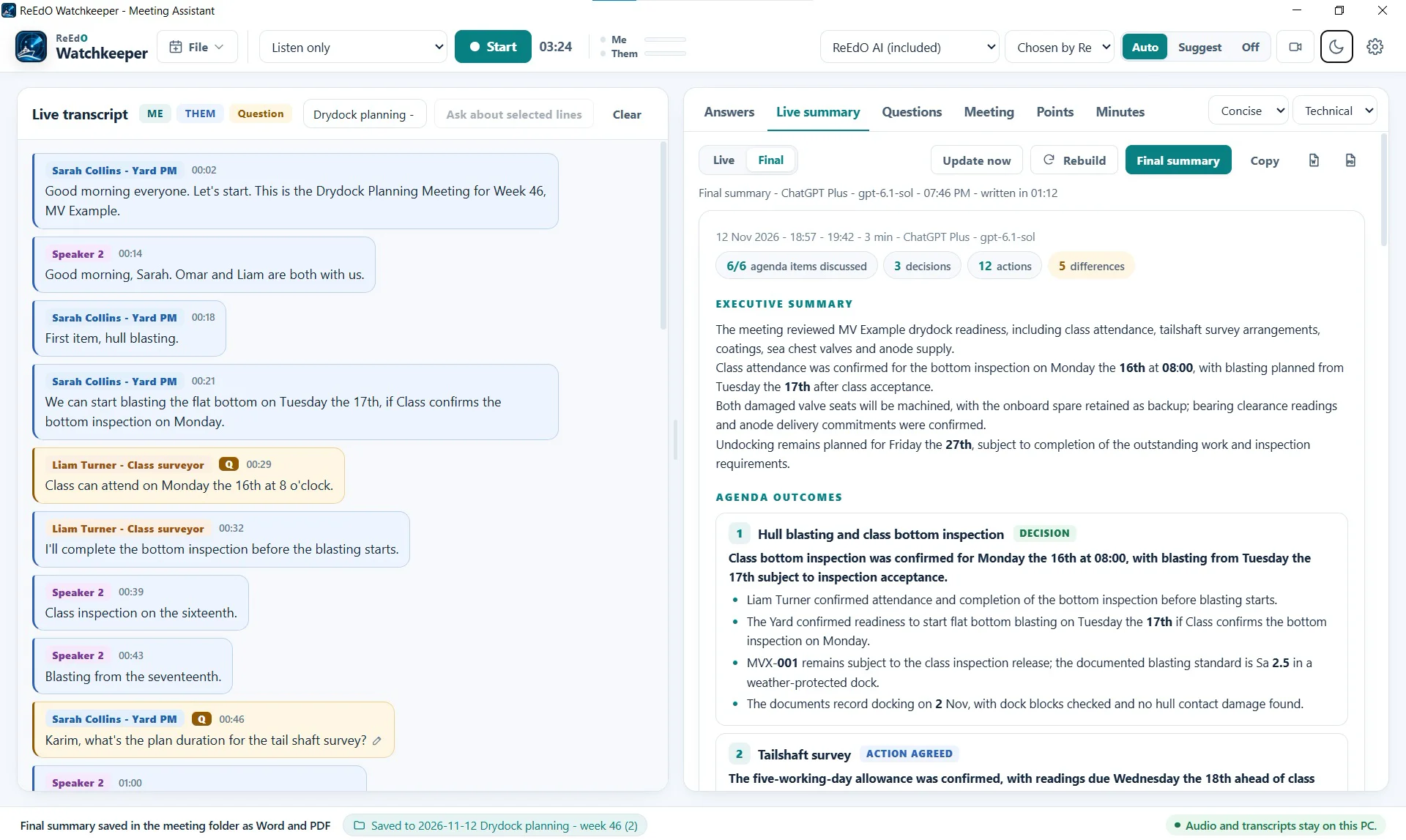
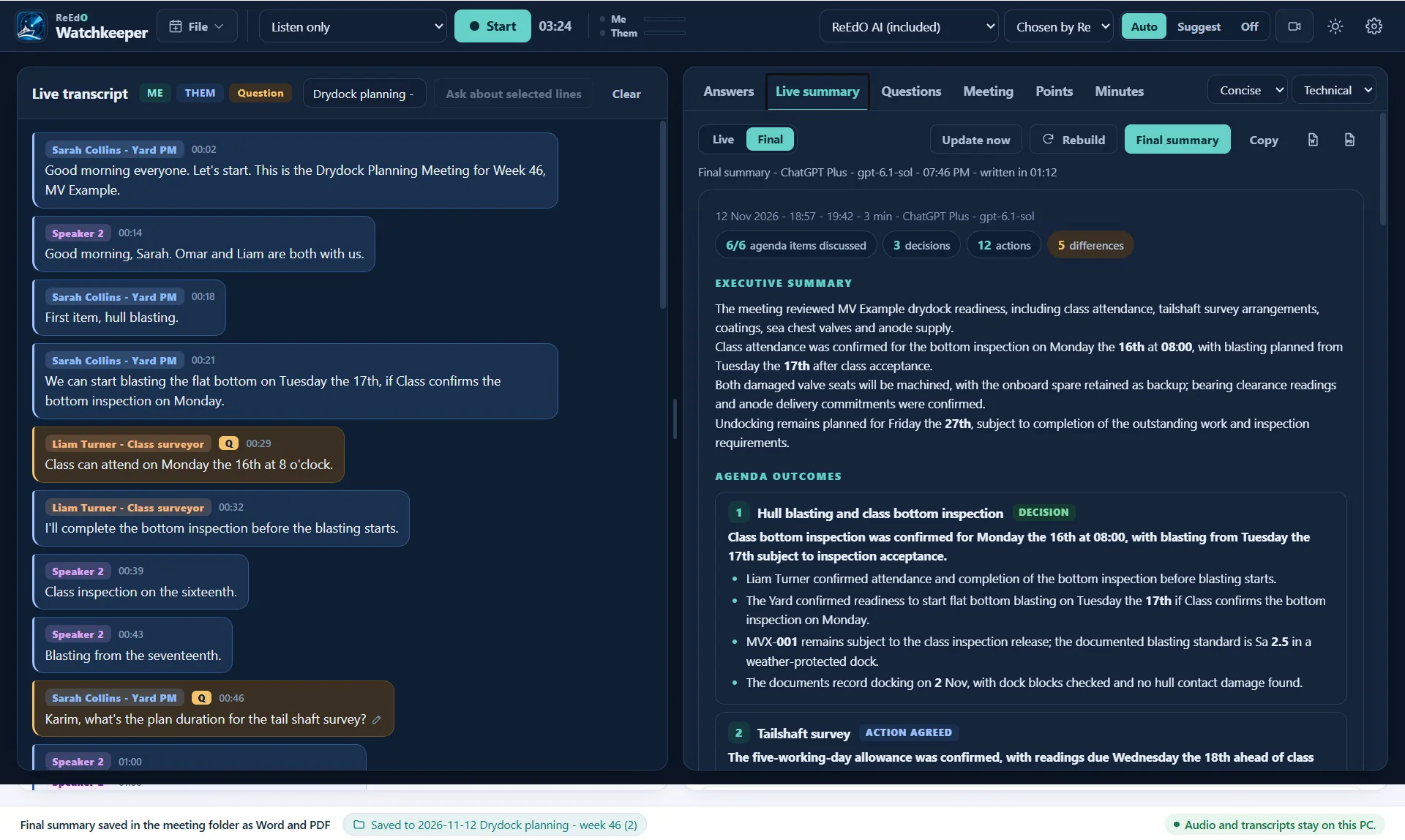
Live summary
Decisions and actions are summarised while the meeting runs, so you can check the direction without scrolling back.
During
Questions tab
Questions worth asking are kept in one tab, in the order you may want to raise them.
Questions tab
Honest placeholder. The real capture arrives in the media milestone.
During
Speaker names
Speakers are labelled in the transcript, and you can correct a name to a person in the People book.
Speaker names
Honest placeholder. The real capture arrives in the media milestone.
During
In the room and hybrid
One microphone in a room, or a room plus people online, works in the same meeting window.
During
Echo cancellation
With laptop speakers, the meeting sound is taken out of the microphone signal so your own transcript stays clean.
During
Remote Desktop
Over Remote Desktop, Watchkeeper listens to the microphone of the device you connect from; the audio settings explain what is happening.
Languages
Arabic and English meetings
Choose the language when you create a meeting. English meetings are written live on your PC. Arabic meetings are recorded and turned into an Arabic transcript, summary and minutes after the meeting, right to left, with English words kept as said.
After the meeting
After
Clean-up listen
After Stop, every line is listened to again from the recording, on your PC, and merged with what was heard live.
After
Minutes you can rely on
Summaries and minutes are checked before you see them. If an AI model does not deliver, another one takes over by itself.
After
Review first, then write
Watchkeeper follows fixed steps: clean-up and merge, your review of words and names, a project reasoning pass and your review of points, then the final summary and minutes. Steps cannot be skipped. Finish later saves your place so you can resume.
After
Never stuck after a meeting
After you press Stop, Watchkeeper cleans the transcript, checks names, and writes the summary and minutes, step by step. You see what each step is doing. If something does not finish, the app tells you why and what to do: try again, repeat only the missing lines, or let ReEdO AI finish that step.
After-meeting steps in progress: “Cleaning up the transcript… 45 of 129 lines done”
Honest placeholder. The real capture arrives in the media milestone.
If a step does not finish, the app tells you why and offers the next move.
Honest placeholder. The real capture arrives in the media milestone.
After
Back-to-back meetings
Start your next meeting while the last one is still finishing. Nothing is lost; unfinished meetings wait on the main screen until you continue them.
Back-to-back meetings
Honest placeholder. The real capture arrives in the media milestone.
After
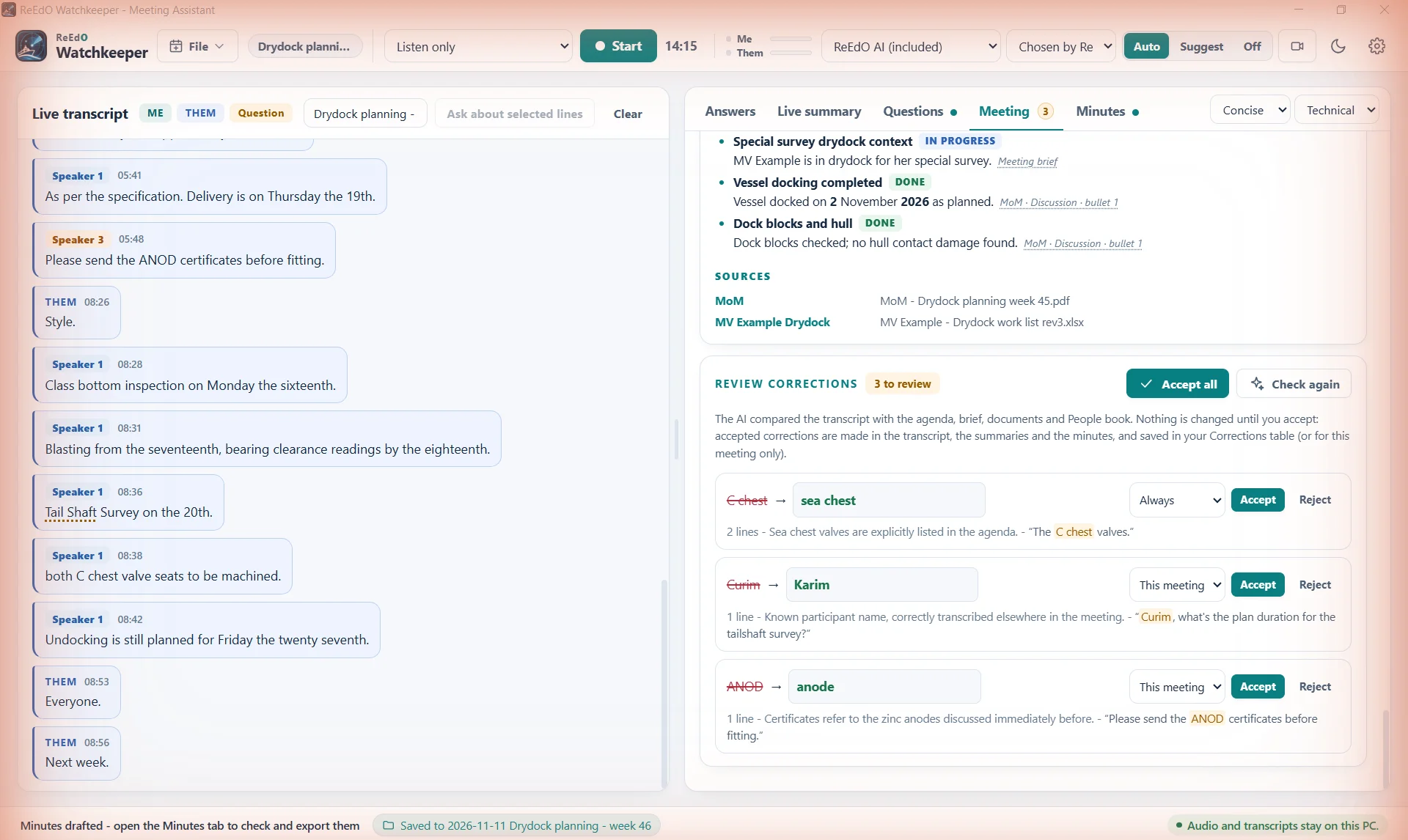
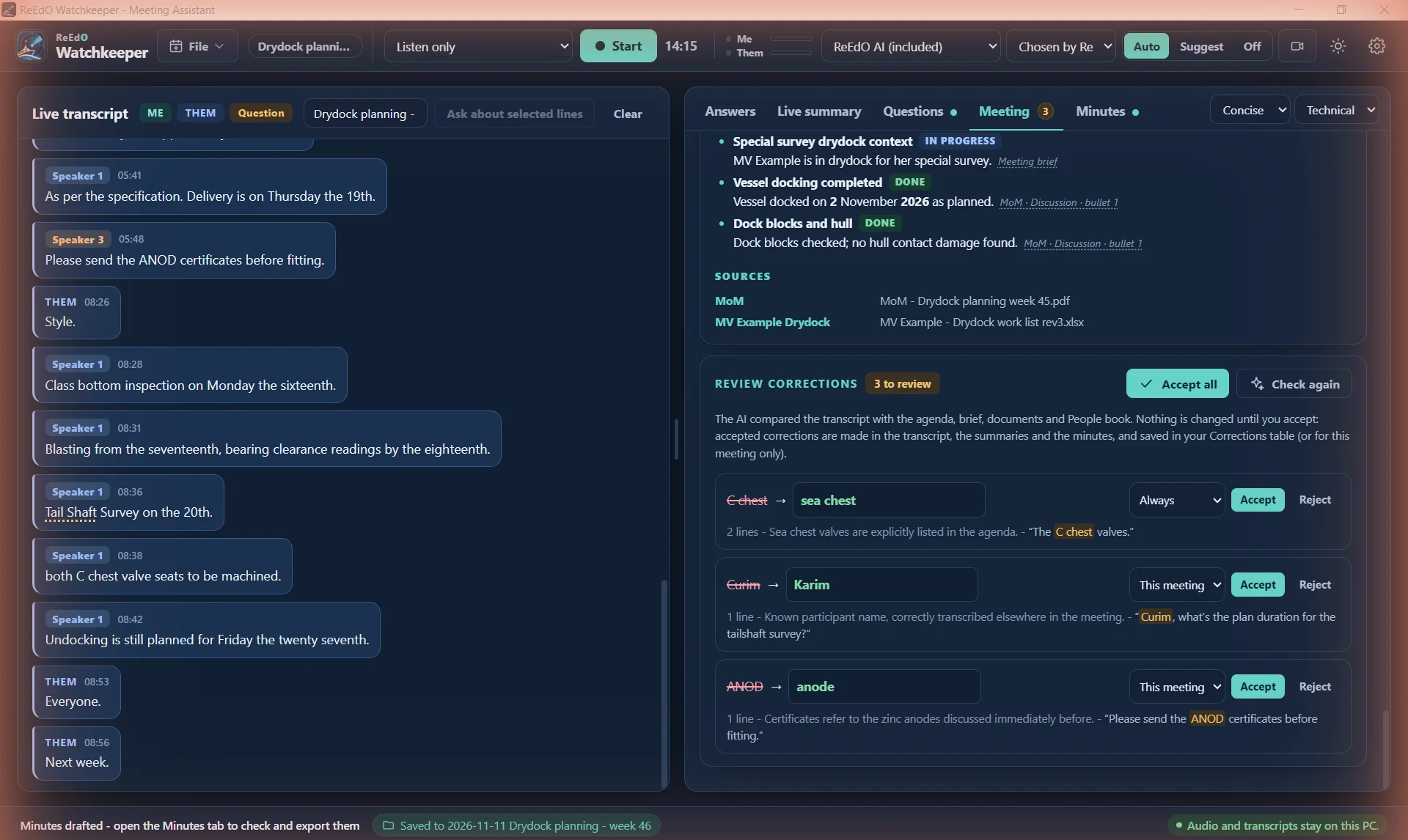
Review mis-heard words
Watchkeeper lists the words that were probably mis-heard, with the reason and where they are. Nothing changes until you accept. A correction you accept also fixes the AI's own spelling of the name in the summary and minutes.
After
Participants filled in for you
People who spoke and were named are added to the participants and to the minutes' attendees. Names from your People book mentioned in the meeting are suggested. Rename a speaker and the minutes follow.
After
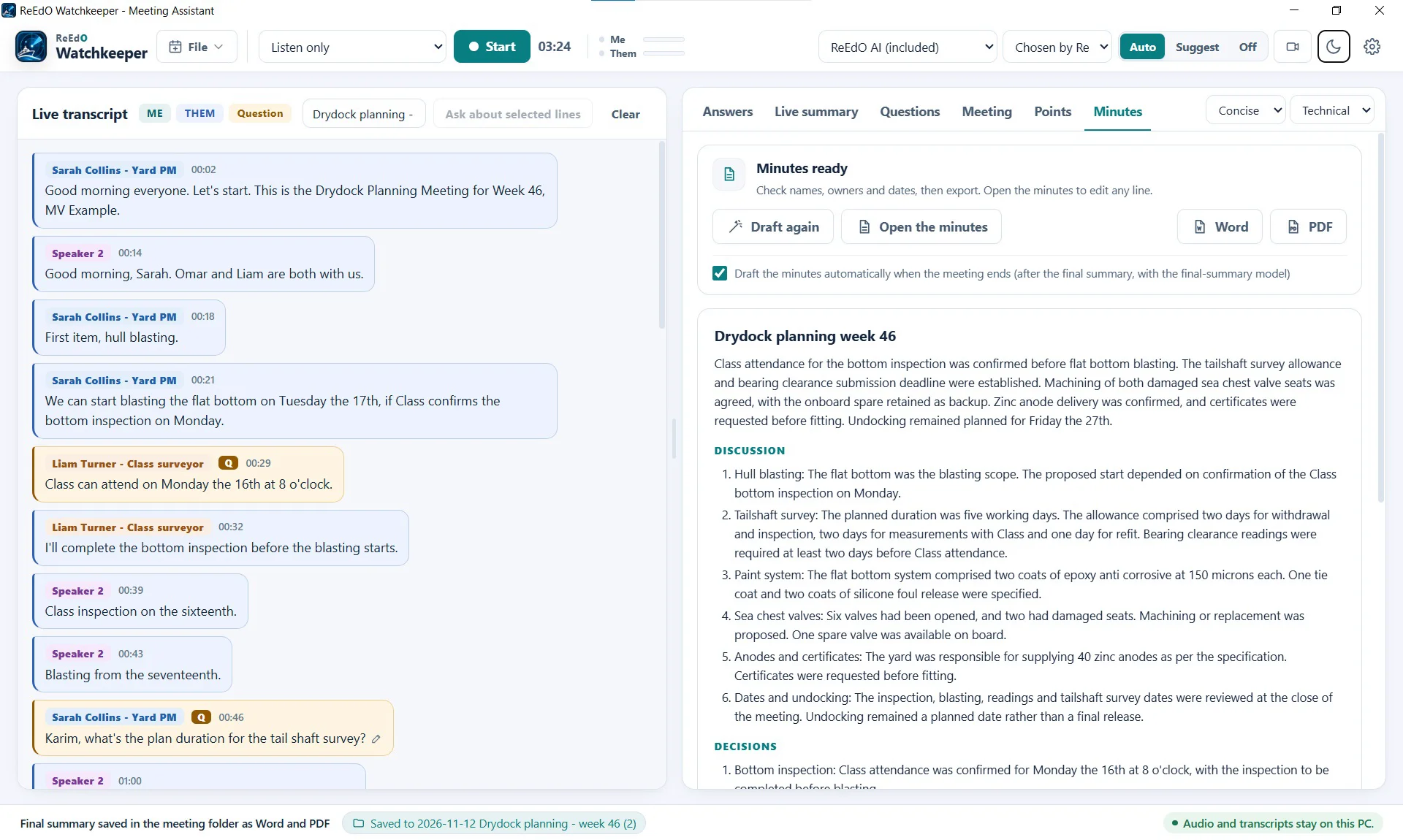
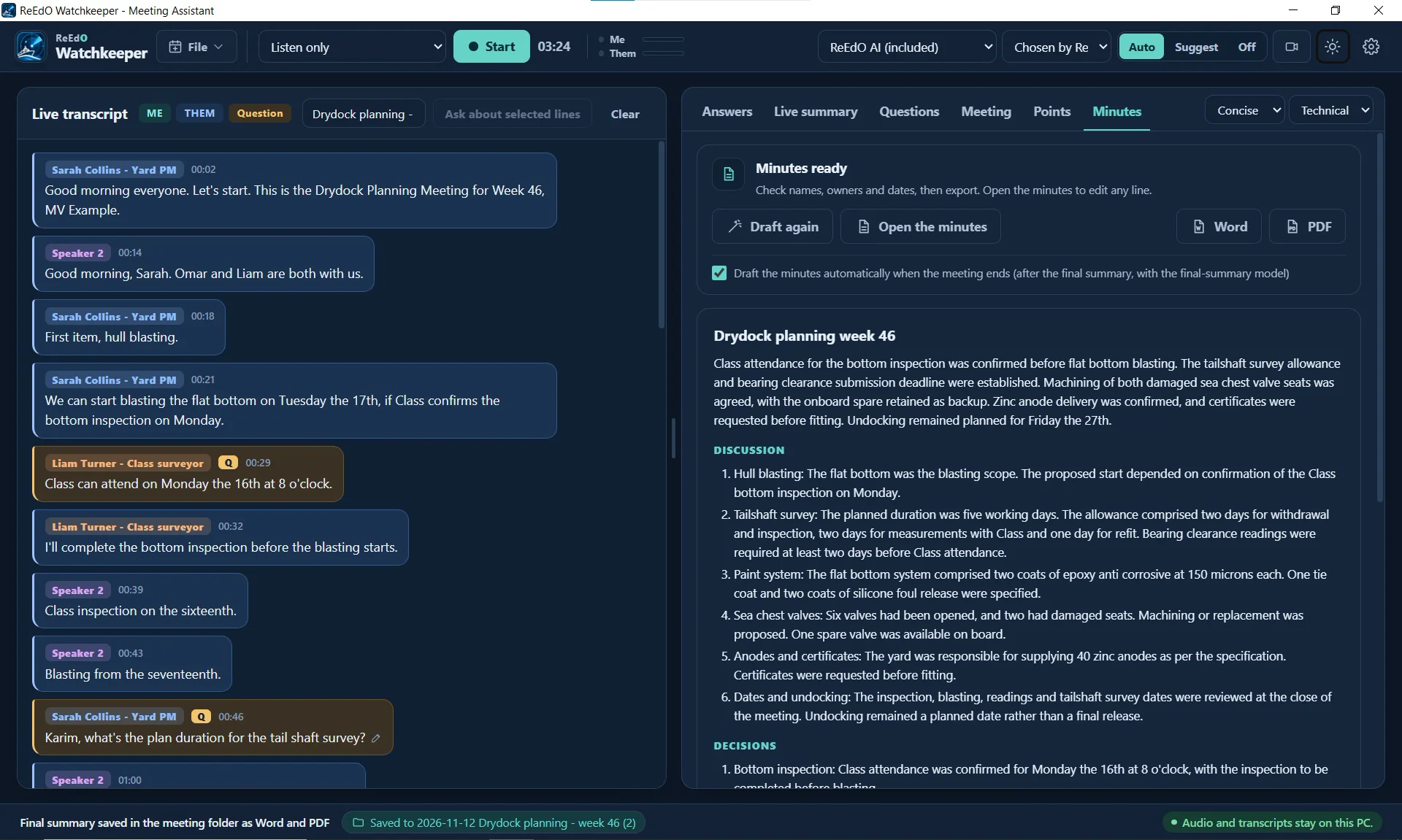
Minutes in Word and PDF
Professional third-person minutes with your style and logo, exported in Word or PDF. Every topic, decision, action and point starts with a short subject in bold. The brief, agenda, summaries and points use a professional writing style - no first person, short factual lines.
After
Backup and Restore
Copy meetings, projects and the People book to your OneDrive, Google Drive or a USB disk, and bring them back on a new PC.
After
Final summary
After the after-meeting steps and your reviews, the final summary is written with your accepted corrections: decisions, actions and the points that matter.
After
MP3 recording
Keep the meeting recording as an MP3, on your PC, alongside the transcript.
After
Ask my meetings
Ask any past meeting what was agreed, with references back to the lines that support the answer.
Ask my meetings
Honest placeholder. The real capture arrives in the media milestone.
After
Open actions
Actions with owners and dates are listed after the meeting, so nothing agreed is left without a name.
Projects
Projects
PremiumProjects
Group the meetings of one job. Create a project from the Projects screen, the New meeting window or Move this meeting.
Projects
Points log
Every point numbered (for example, PRJ-001), with owner, due date, status (Open, In progress, On hold, Done, Cancelled) and its history meeting by meeting. On hold and Cancelled need a reason. Overdue is shown automatically.
Projects
Start today's meeting
The new meeting opens with the open points as agenda item 1, the regular participants, and a brief of what changed since last time.
Projects
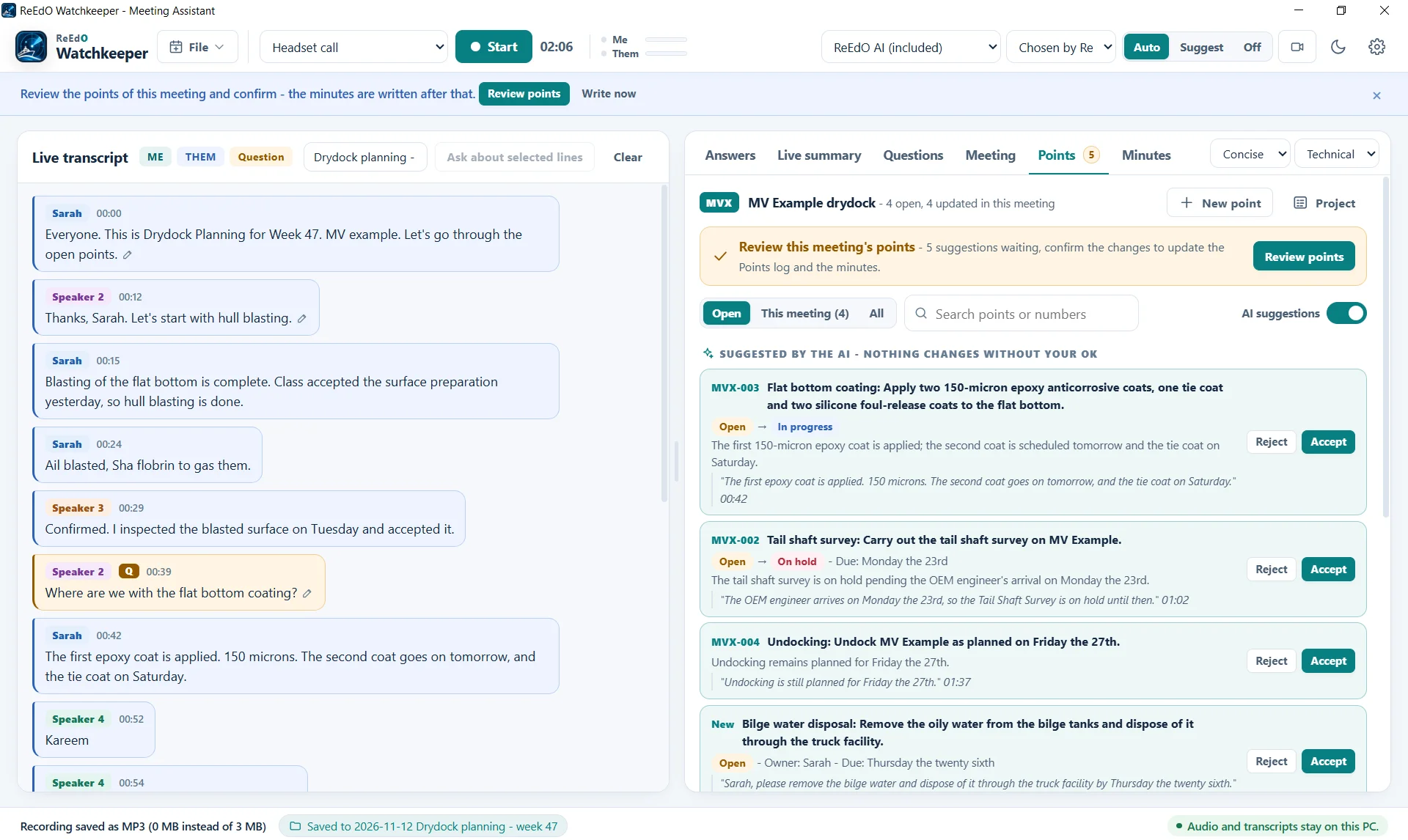
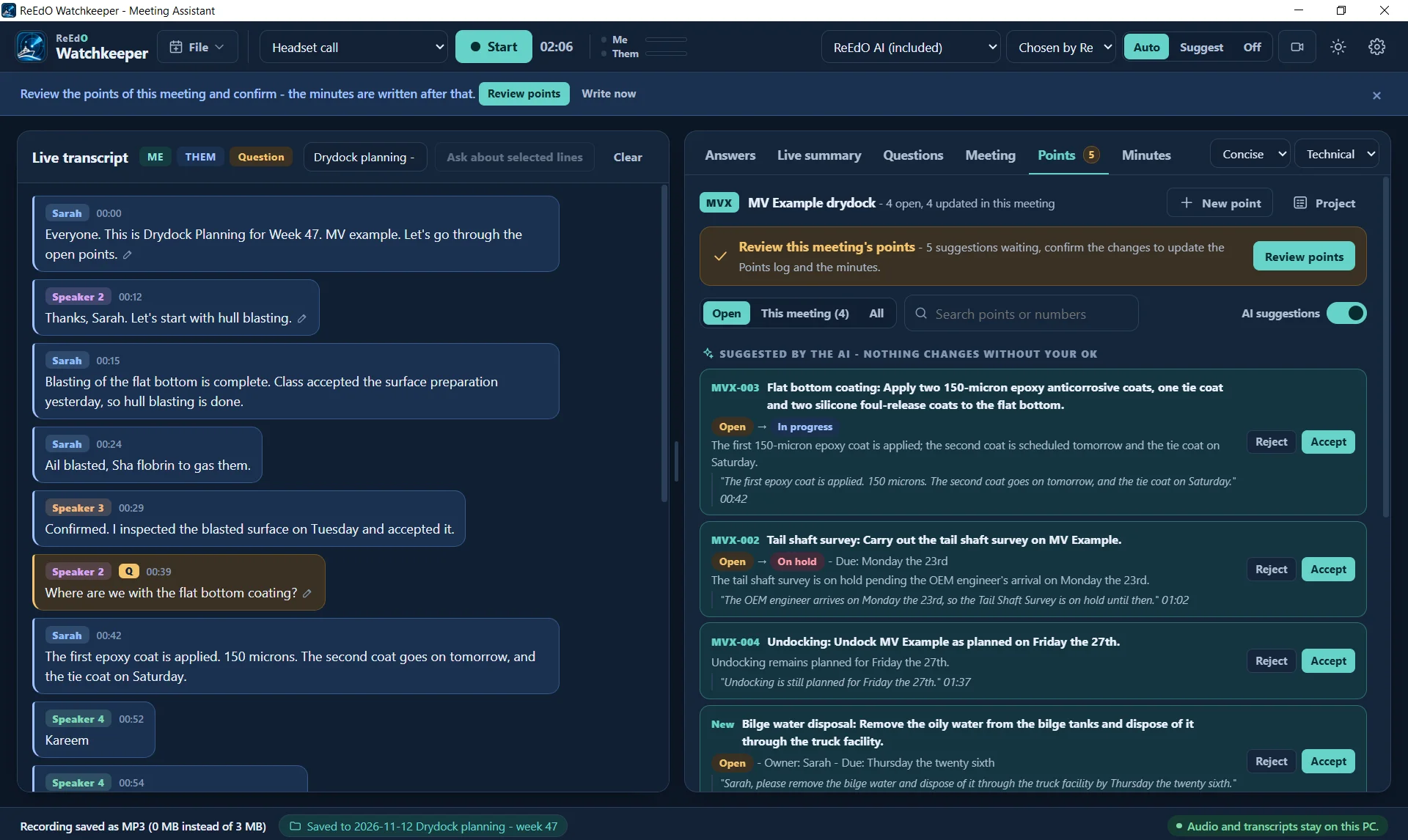
Review points
After the meeting one reasoning pass reads the whole meeting and suggests status changes, notes and new points, each with the sentence it came from. Nothing changes until you confirm.
Projects
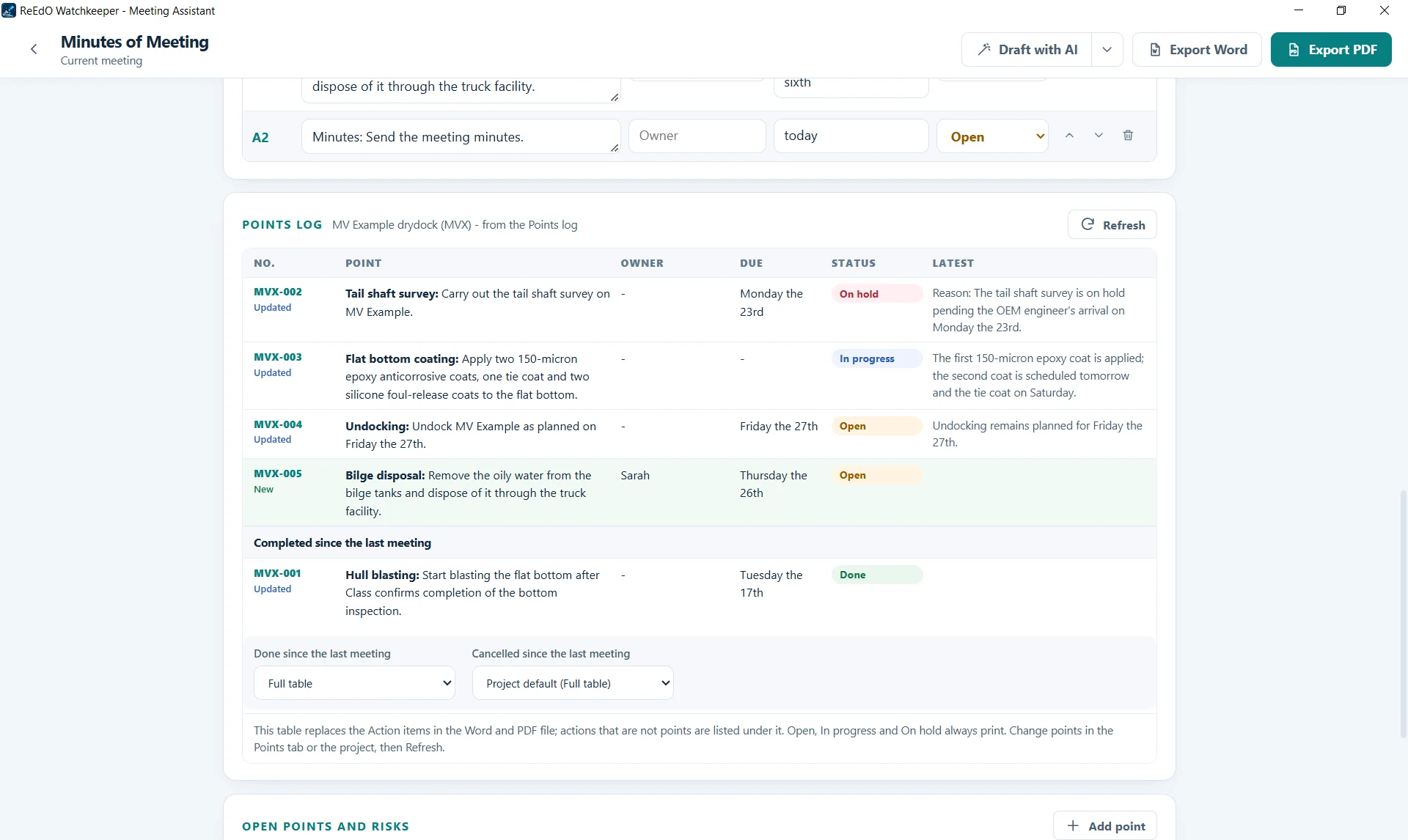
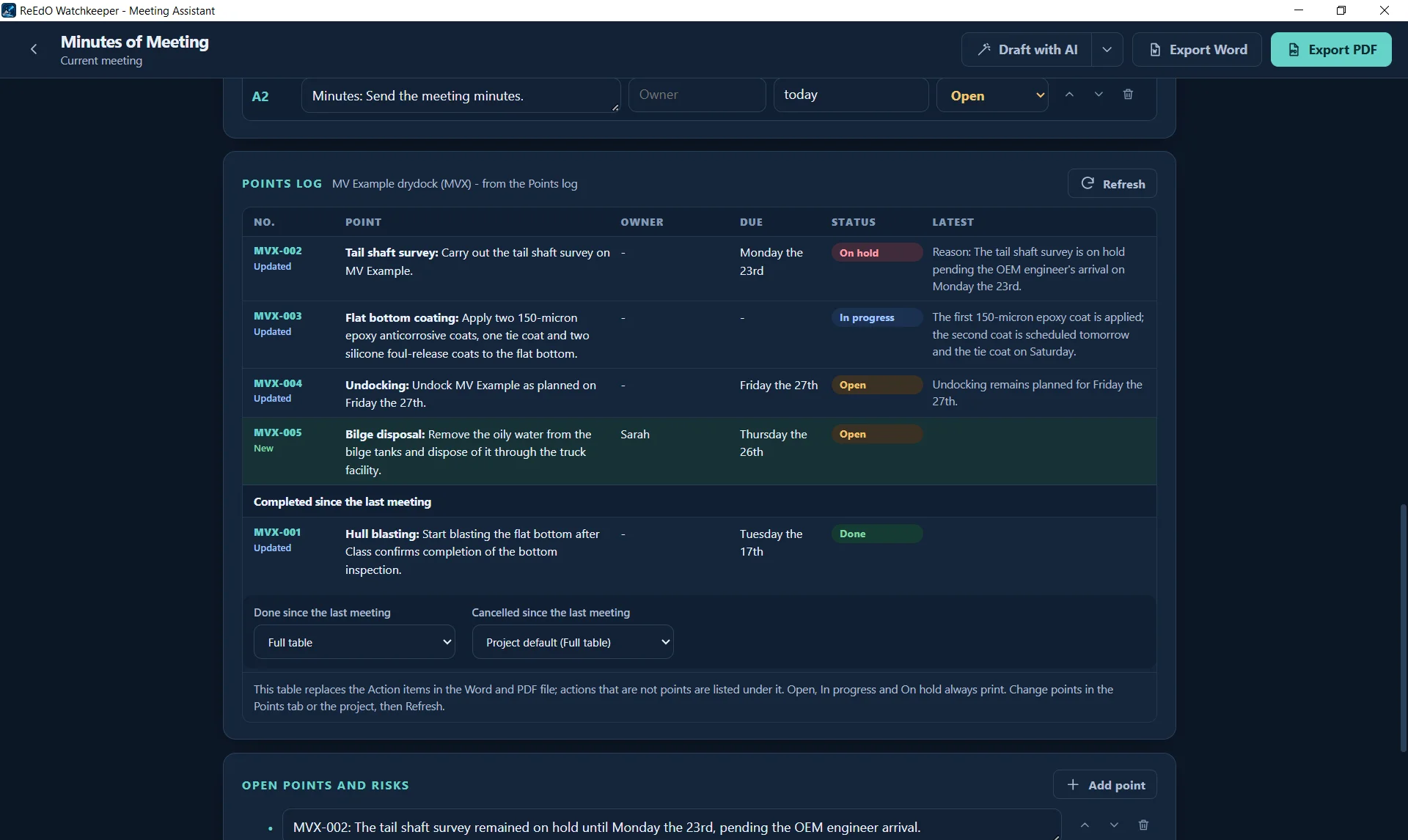
Minutes with the points table
One table carries every open point forward; points closed since the last meeting print once.
Projects
Project register and reports
Export the register to Excel (summary, one sheet per status, history; subject in its own column) or PDF; weekly and monthly progress reports in Word or PDF.
Projects
Move meetings
Move a meeting into, out of or between projects; nothing is deleted and Undo brings it back.
Projects stay readable and exportable on every level; running project meetings and the AI suggestions need Premium (3-day trial from Pro).
Talk
Talk
Add-onPush to talk
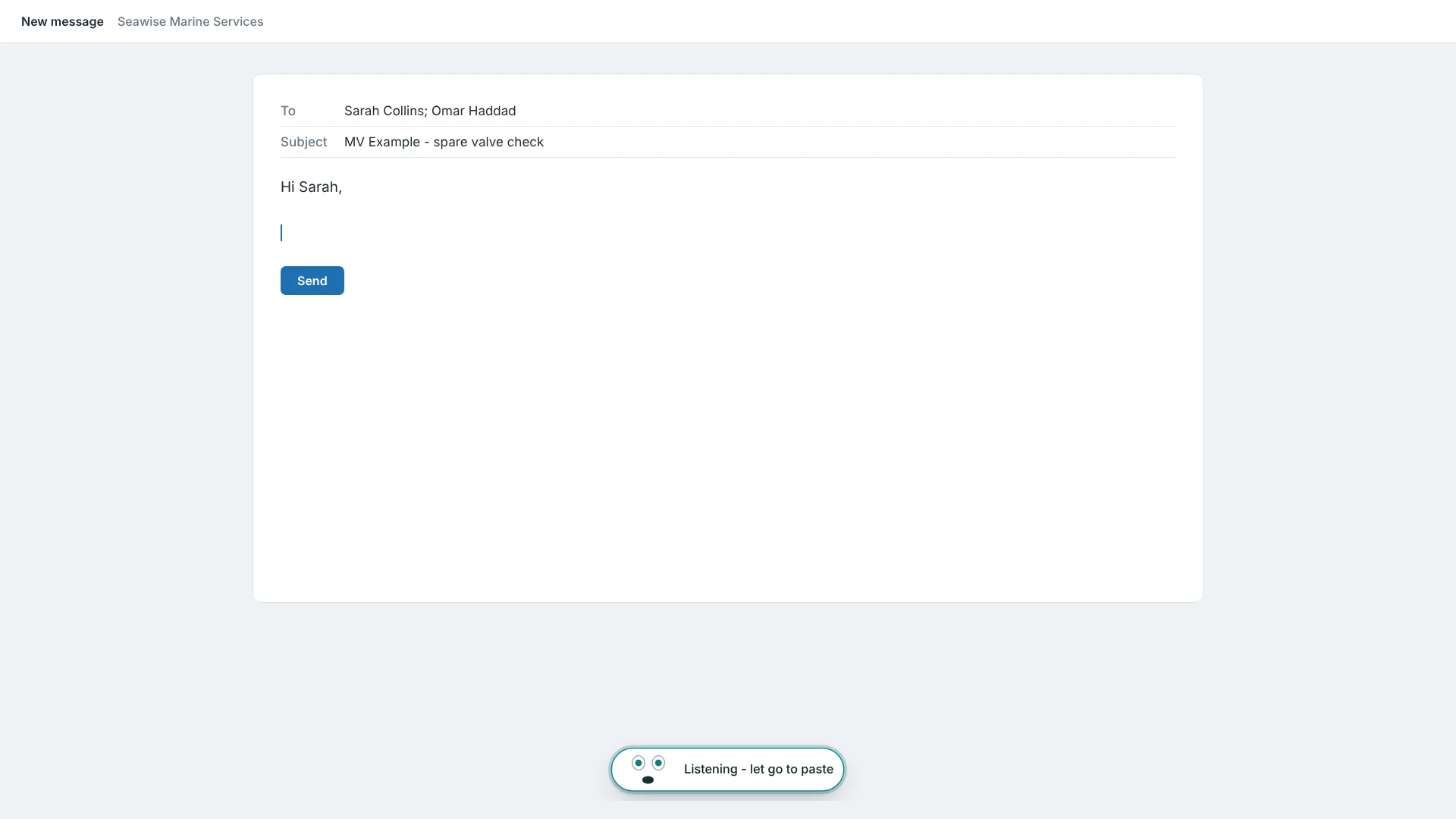
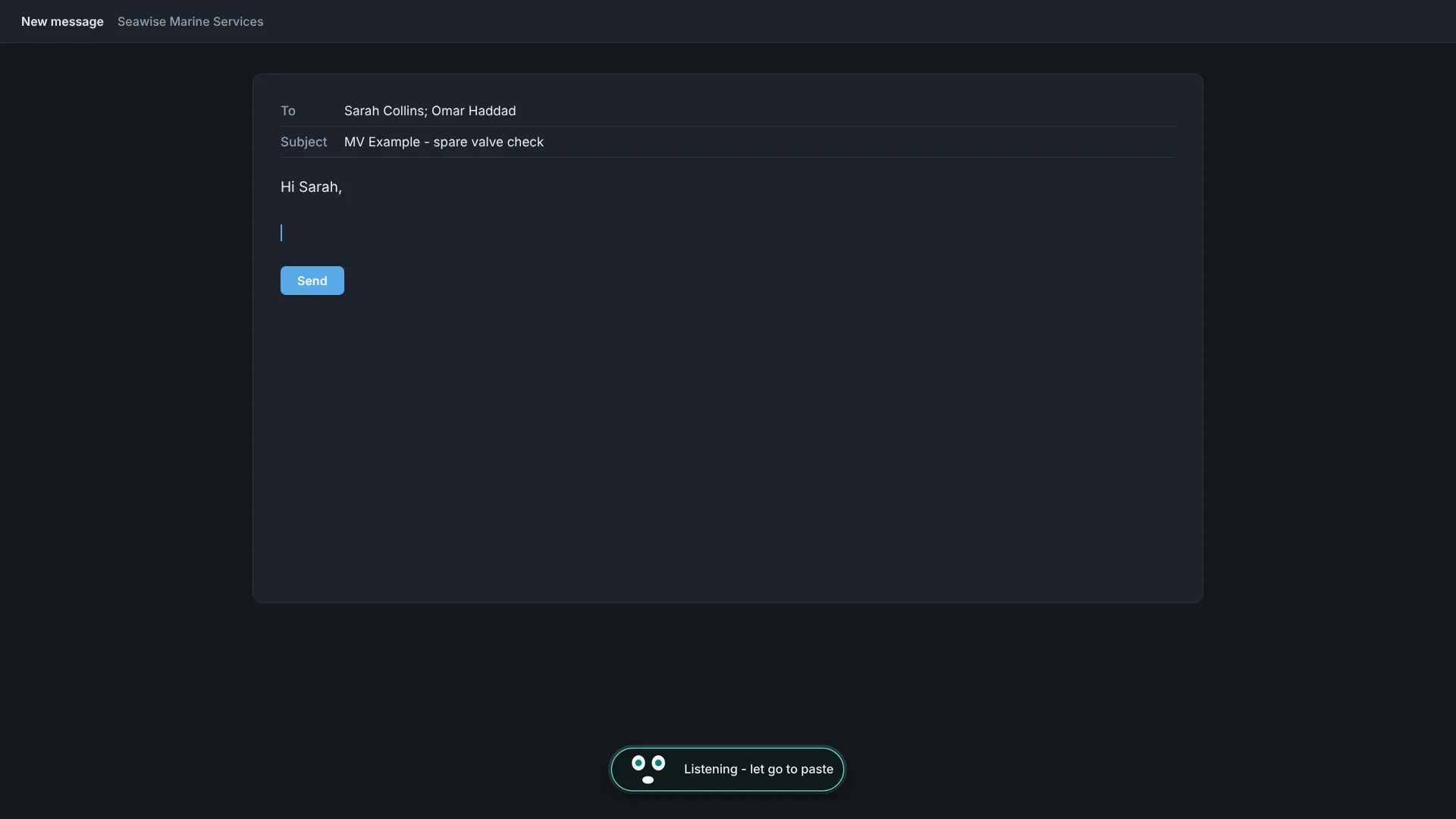
Hold Z and X, speak, let go: the words are typed where the cursor is: Outlook, Teams, WhatsApp, Word, a browser.
Talk
Notes
Hold Z and C to save a note instead of typing it, so a thought is kept without interrupting the text box.
Talk
Clean-up
Filler words, repeated words and false starts are removed, and a wrong figure or name is caught before the text is pasted.
Talk
History
Dictations and notes are kept for a few days, encrypted with your Windows account, and can be searched, pinned or deleted.
Talk
The Eyes
A small face on top of every program looks at the cursor and widens when you speak; a click starts or stops dictation.
Talk
Works over Remote Desktop
On an iPad, tablet or another PC, tap Z then X to start and stop; characters sent by touch keyboards are understood.
Levels
What each level includes
Every level includes ReEdO AI with your licence. Add-ons work on any level, on request.
-
In every meeting
- Live transcript on your PC - Standard, Pro, Premium
- Summary and minutes (Word and PDF) - Standard, Pro, Premium
- Auto answers (spots questions put to you and suggests an answer) - Pro, Premium
- Questions to ask (what was not covered, still open, needs an owner) - Pro, Premium
- Camera view (your answer next to the camera, so you keep eye contact) - Pro, Premium
- Meeting brief (agenda and documents turned into one brief before you join) - Pro, Premium
-
Across meetings
- People book and speaker labels (who said what) - Pro, Premium
- Your own AI accounts (use an AI account you already have, as well as ReEdO AI included) - Pro, Premium
- Projects and Points log (every open point carried from meeting to meeting until it is closed) - Premium
- Ask my meetings (search and ask across all your meetings, for example "What did we agree on the budget?") - Premium
- My voice and room meetings (your lines marked "Me", also with one microphone in a meeting room) - Premium
-
Add-ons (any level, on request)
- Arabic meetings (Arabic transcript, summary and minutes, right to left; English words kept as said)
- English live text with ReEdO AI speech
- ReEdO Talk (dictation into any app)
Want to try a higher level? Ask for a trial of up to 3 days from Settings > About in the app, or contact support@reedoapps.com.
Privacy and licences
Privacy
On-PC speech
Speech is written to text on your computer. Meeting data is stored on your computer only.
Privacy
No telemetry
The app sends no usage data. A licence check sends only the licence id, the Machine Code and the version.
Privacy
ReEdO AI keeps nothing
Only the text needed for an answer is sent, and the ReEdO server does not store it.
Privacy
Signed updates
A new version installs only after you choose to install it, and only when it is signed by ReEdO.
Signed updates
Honest placeholder. The real capture arrives in the media milestone.
Privacy
Terms 1.6
The licence agreement, recording consent, AI-output and data-protection sections in one place.
See it with your own meetings.
Download the app, request a licence and try the next level first.