
The product
Your meetings, on watch.
One assistant for the whole meeting: get ready for it, answer the questions that come to you, and leave with the minutes already written. Speech becomes text on your own PC.
Windows 10 / 11 · Teams, Zoom, Meet, Webex · English + 24 languages
 MV Example - drydock planning REC 00:14:32 ReEdO AI
Live transcript
We can start the hull blasting on the 14th if the class surveyor confirms.
Class is booked for the 13th, so that works.
What's the planned duration for the tailshaft survey?
Q · Tailshaft survey duration
Plan five working days: two for withdrawal and inspection, two for measurements and class attendance, one for refit. Confirm the bearing clearance report before the 13th.
Answered in 1.8 s · speech stayed on this PC
Live summary
Decisions: hull blasting from 14 Nov. Actions: send bearing clearance report - Yard PM, by 12 Nov.
Live HTML demo from a JSON script: no video download and no remote service.
Before · During · After
One assistant for the whole meeting.
Set up in minutes, never miss a question in the room, and walk out with the minutes already written.
Act 1 · Before
Walk in prepared.
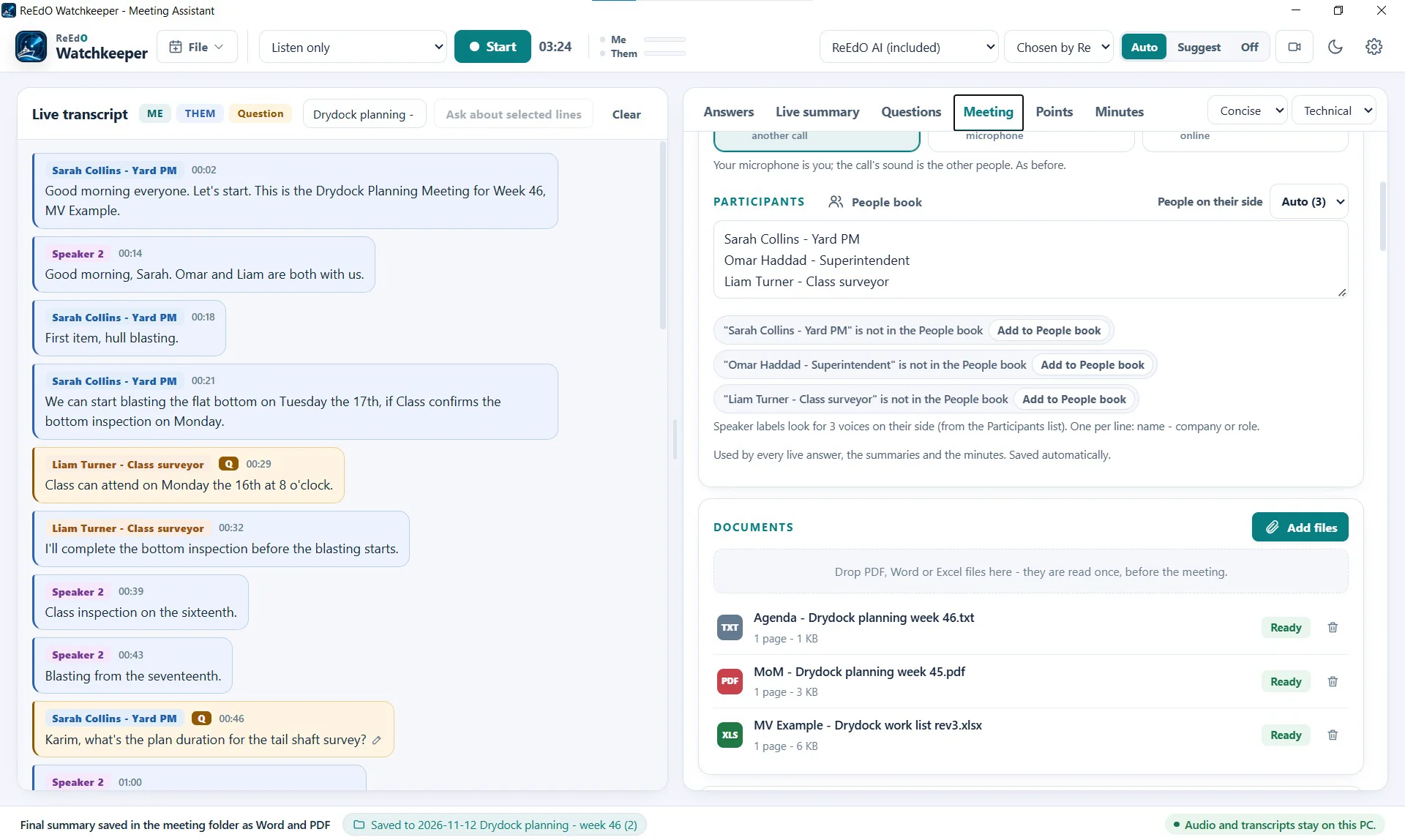
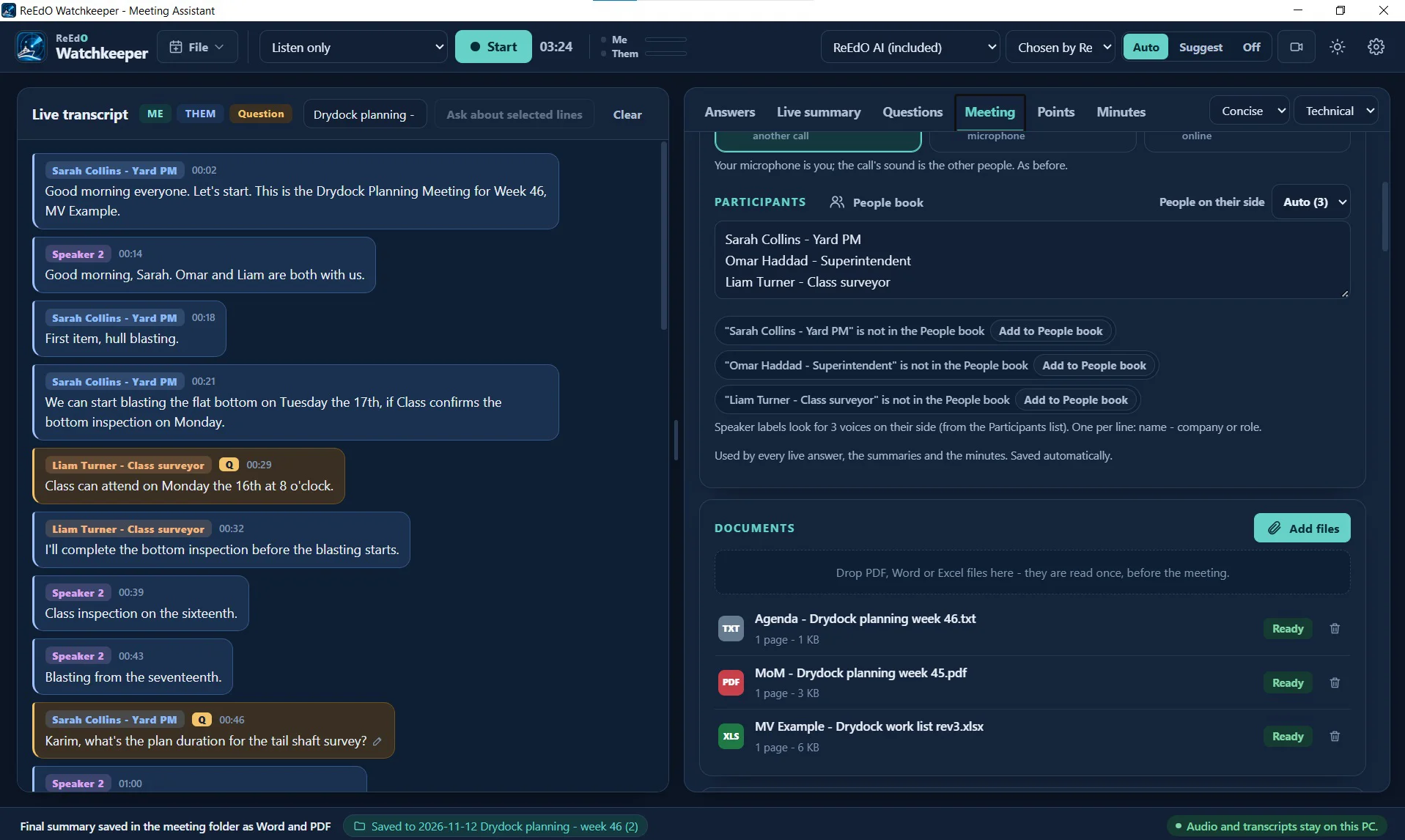
Add the brief, the agenda and the documents. Watchkeeper turns them into one meeting brief and the questions worth asking.
- Reads the PDF, Word and Excel files for you
- Questions shaped by your role in the meeting
- What you agreed with these people last time
Act 2 · During
Never miss a question.
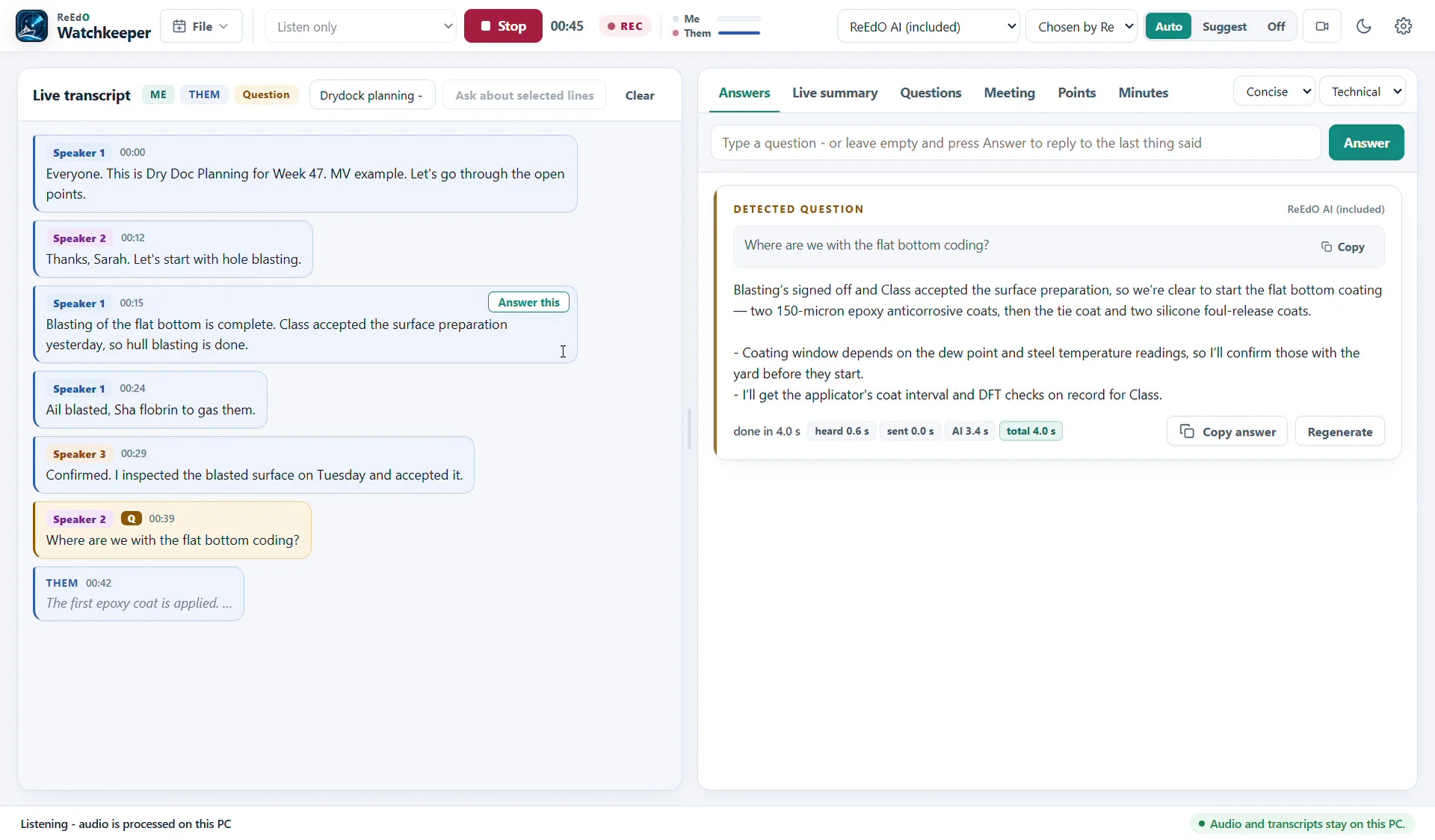
Questions put to you are caught as they're asked and answered within seconds, in the main window or right under your webcam.
- Auto answers, or a suggestion you choose to open
- Live summary every few minutes
- Online, in the room, or both at once
Act 3 · After
Minutes before the coffee is cold.
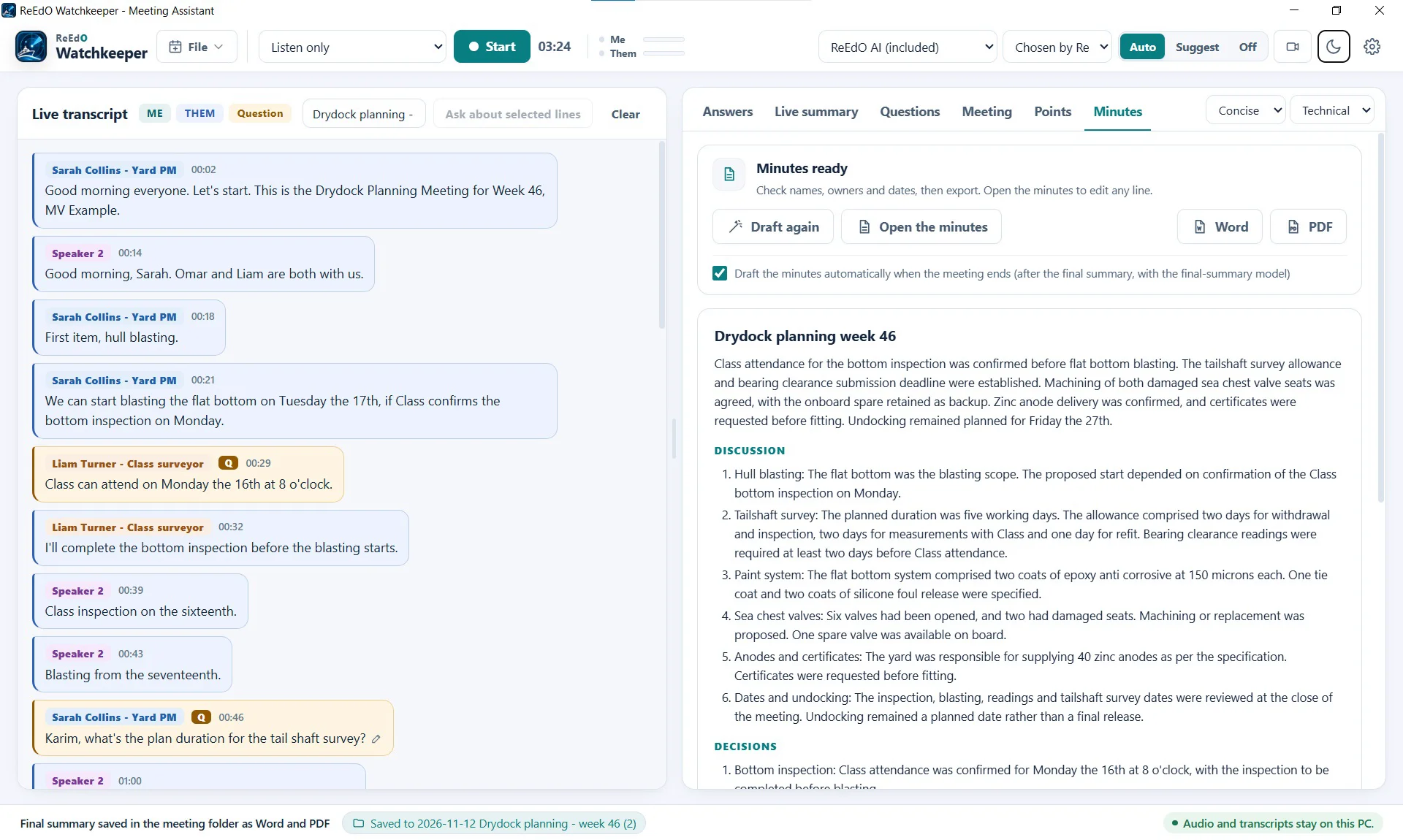
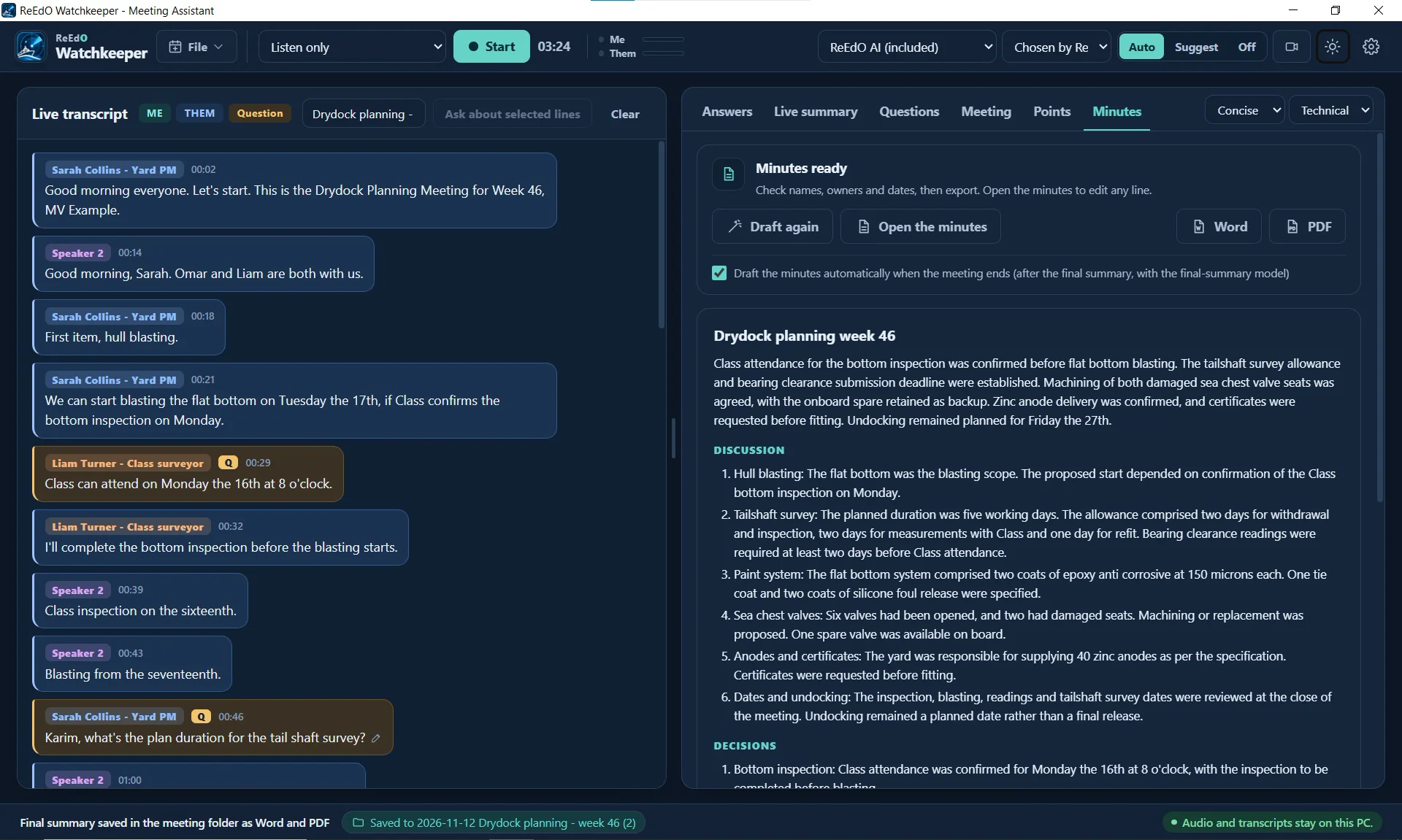
Press Stop and Watchkeeper cleans up and merges the transcript. You review words and names, then points in a project meeting. Only then are your final summary and professional minutes written in Word or PDF with your logo.
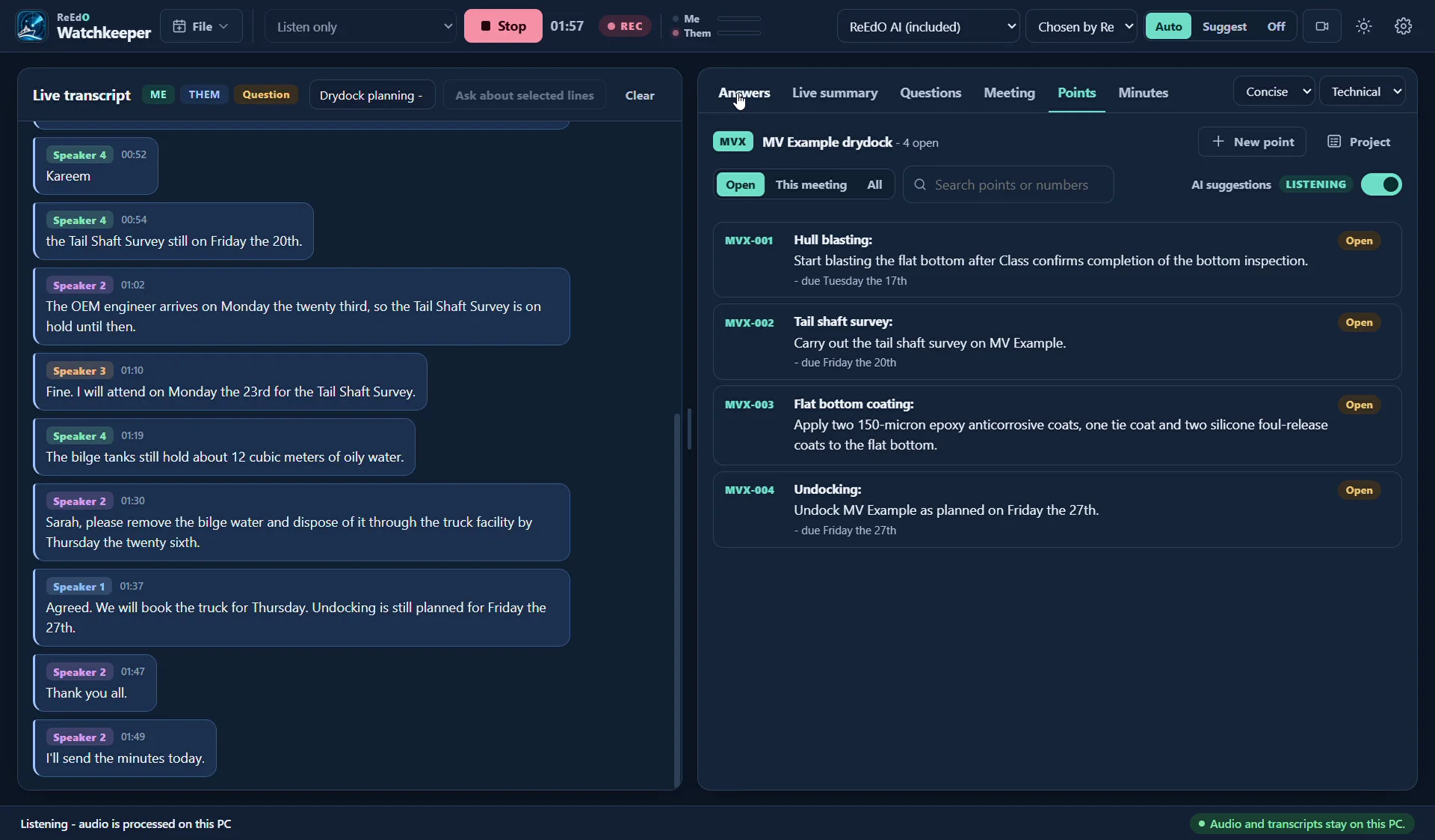
- Decisions and actions with owners and dates
- Fixed after-meeting steps; Finish later saves your progress
- Ask any past meeting what was agreed
Features
Everything you need in one meeting.
Everything the meeting needs, from the agenda to the minutes.
-
Live transcript
On your PC, as people speak.
- Every line is written on your own computer; nothing is uploaded to become a transcript.
- Long talk is cut at a quiet moment, so a sentence is not broken mid-word.
-
Live answers
The answer appears in seconds.
- Answers use the meeting brief, the documents and what has been said so far.
-
Auto / Suggest
Answer automatically, or open a suggestion.
- Auto shows the answer straight away; Suggest keeps it closed until you open it.
-
Camera view
ProThe answer sits under your webcam.
- The answer window stays out of a shared screen or recording. Pro or higher.
-
Live summary
Decisions and actions as they happen.
- Decisions and actions are collected while the meeting runs, so you can follow the direction without scrolling back.
-
Questions to ask
Prepared from the brief and agenda.
- Prepared from the brief, the agenda, the documents and your role in the meeting.
-
Meeting brief
Documents become one page.
- PDF, Word and Excel documents are read before the meeting and turned into one page.
-
Speaker names
People book and labels.
- Speakers are labelled in the transcript, and a label can be corrected to a person in the People book.
-
In the room
One microphone, hybrid too.
- One microphone covers the room, and your own lines are recognised by your voice. Premium.
-
Minutes
Word and PDF, your logo.
- Decisions and actions with owners and dates, exported to Word or PDF with your company logo.
-
Ask my meetings
What was agreed, and where.
- Ask past meetings a question and follow the references back to the lines that support the answer.
-
Talk
Add-onDictate anywhere with Z+X.
- Talk types what you say into Outlook, Teams, WhatsApp, Word, Excel or a browser. An add-on for any level.
-
Projects and Points log
PremiumOpen points carried from meeting to meeting until closed.
- Every point keeps its number, owner, due date, status and history until it is closed. Premium.
-
Review first, then write
Your corrections reach the summary and the minutes.
- After Stop, fixed steps cover clean-up and merge, your review of words and names, then project reasoning and points where applicable, before the summary and minutes are written.
A closer look
The windows you will use.
Real captures from Watchkeeper, in Day and Night. Zoom any screenshot to read the small text.
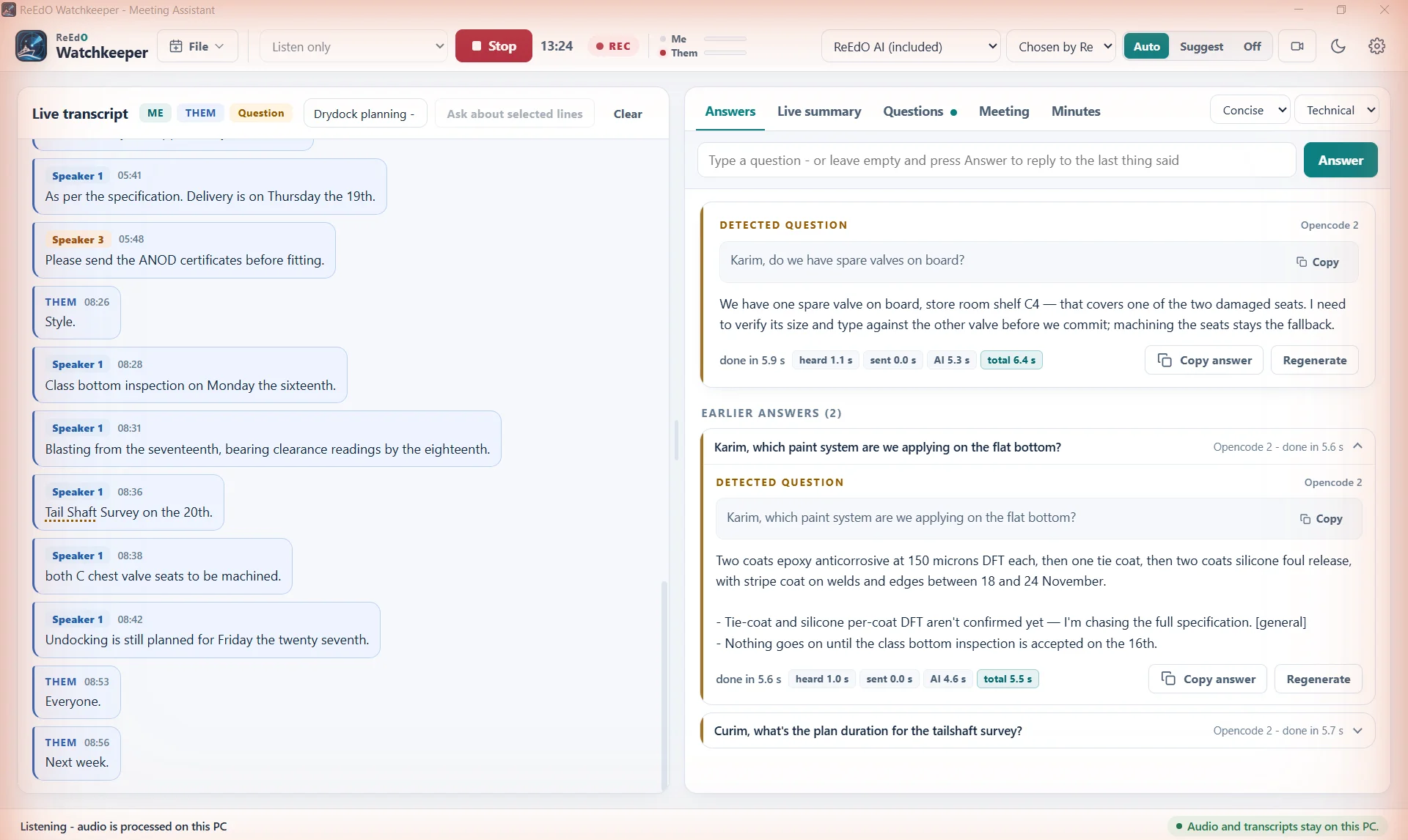
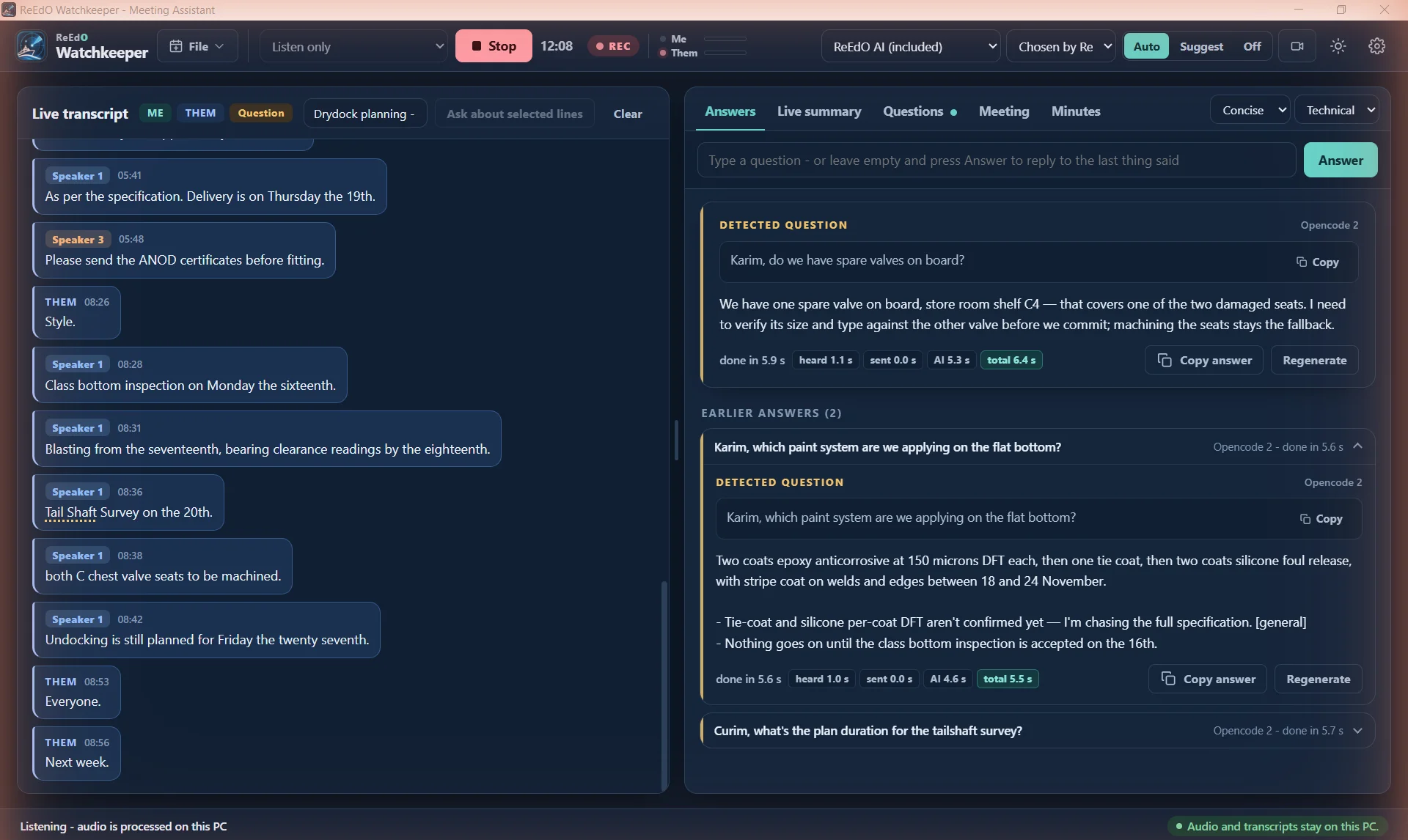
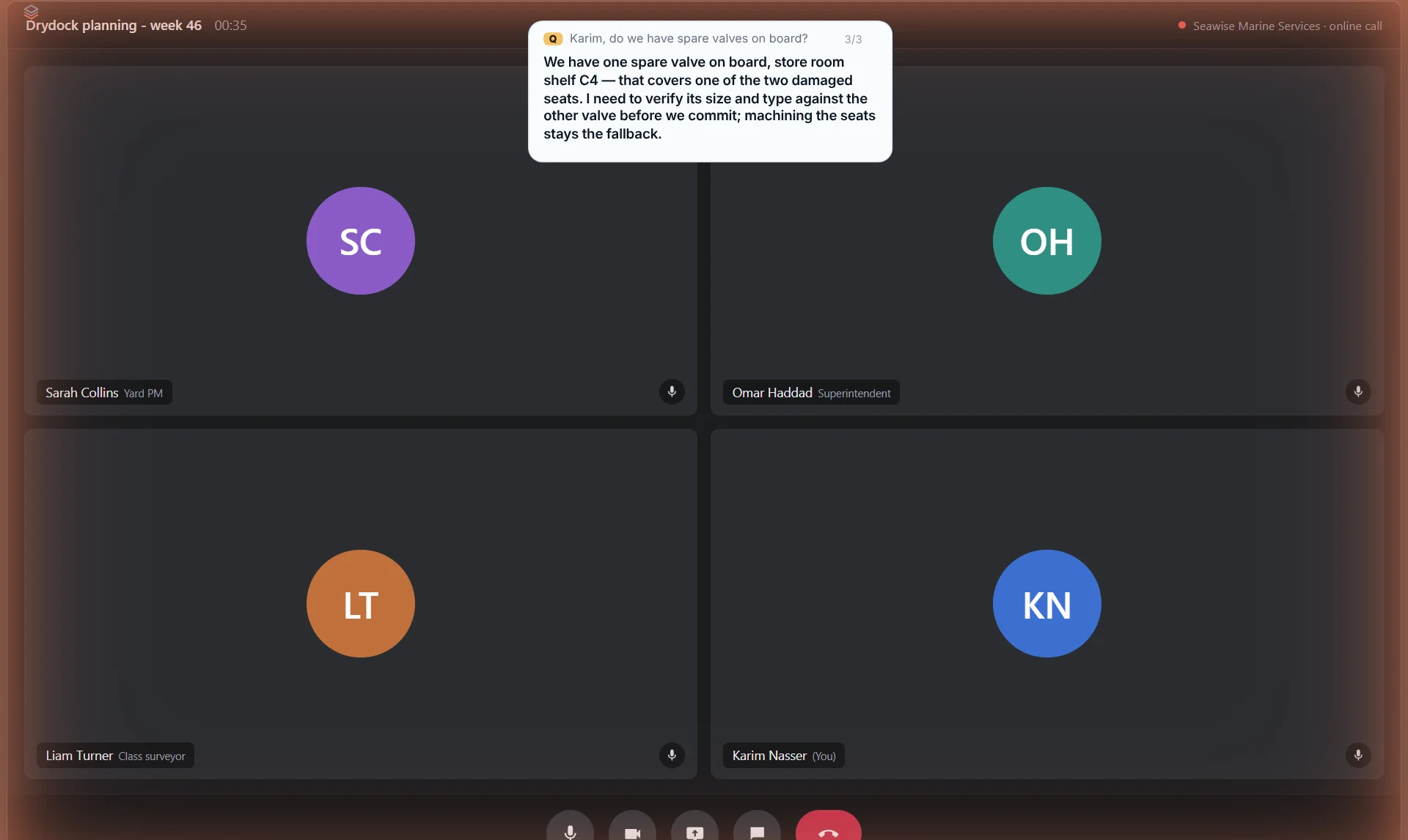
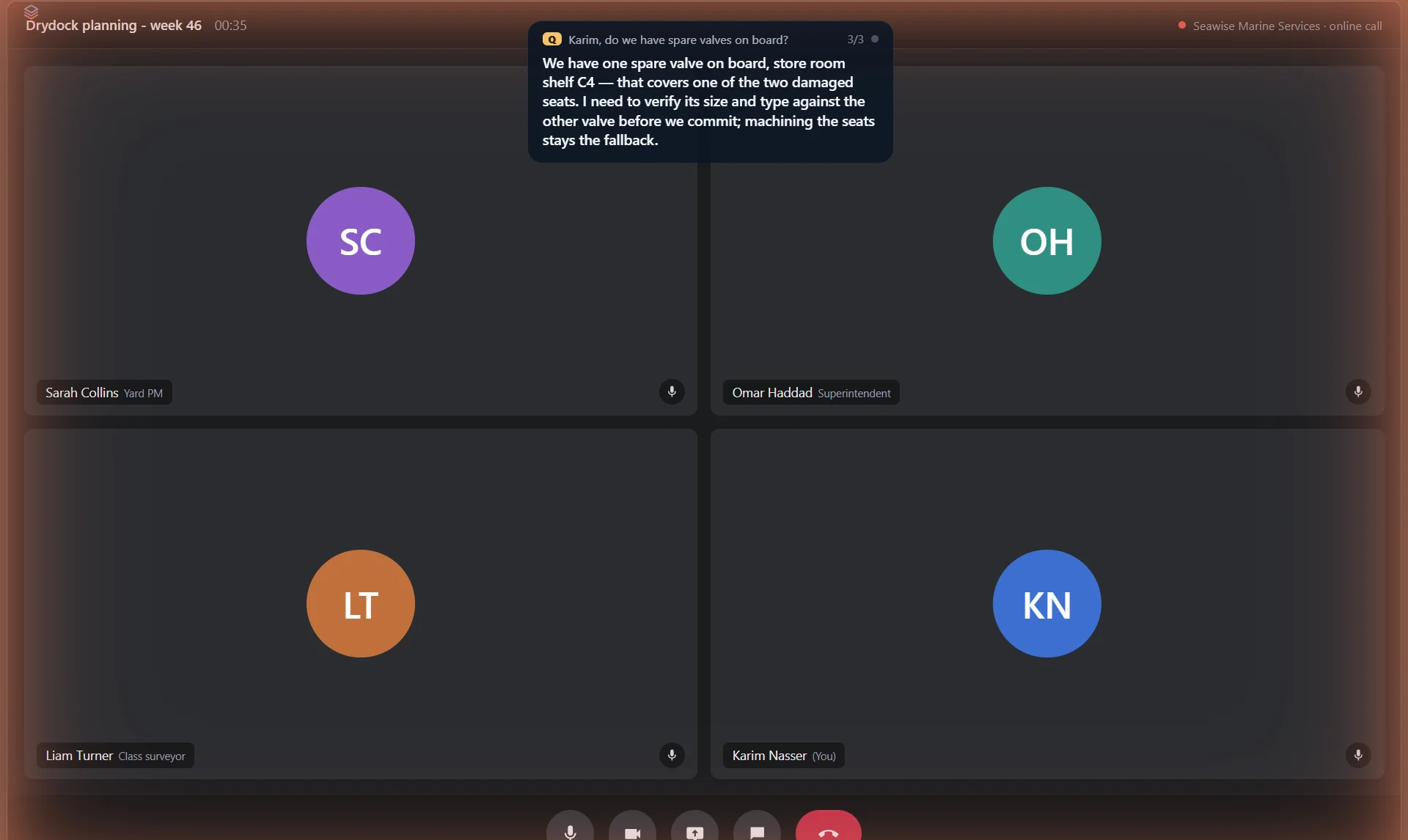
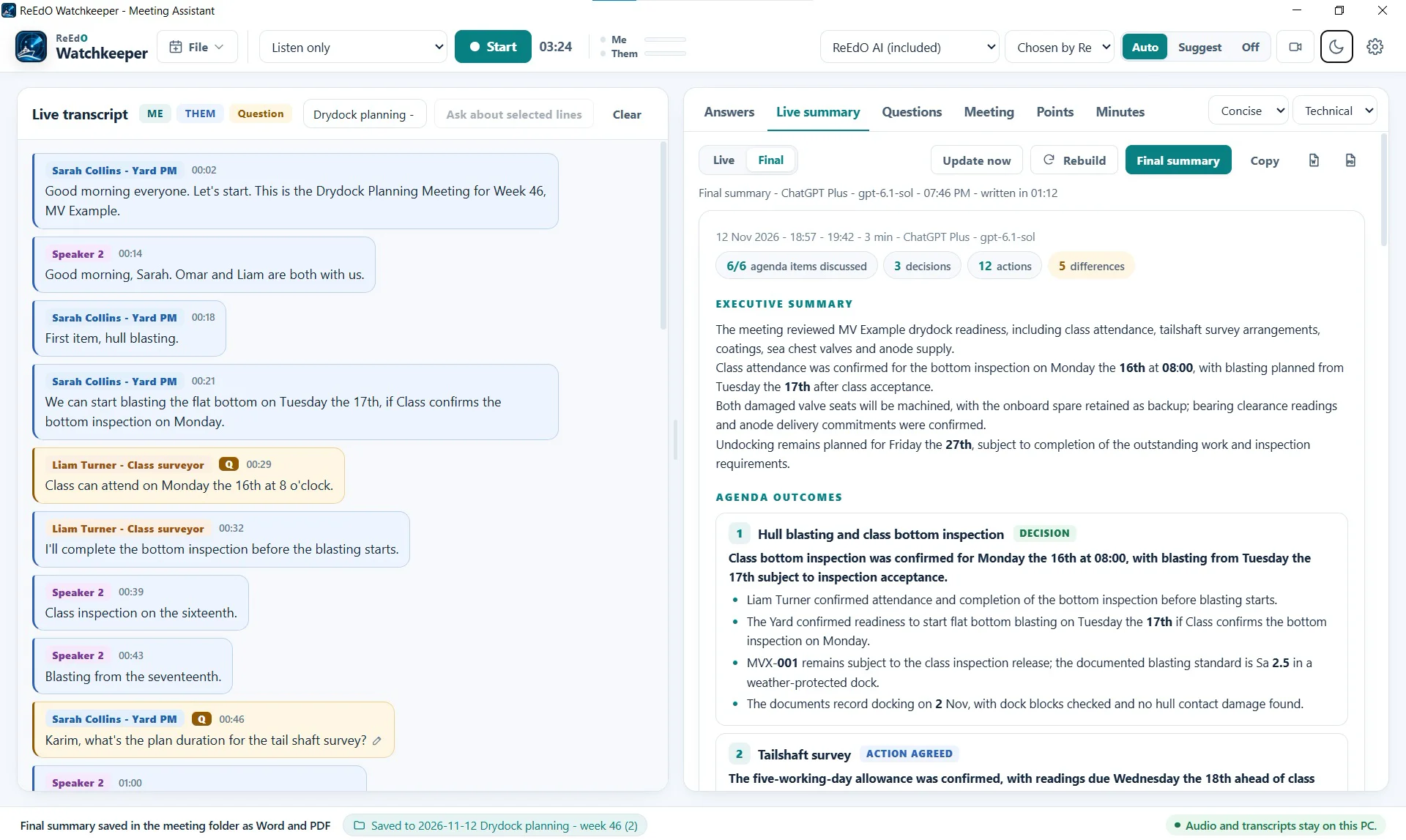
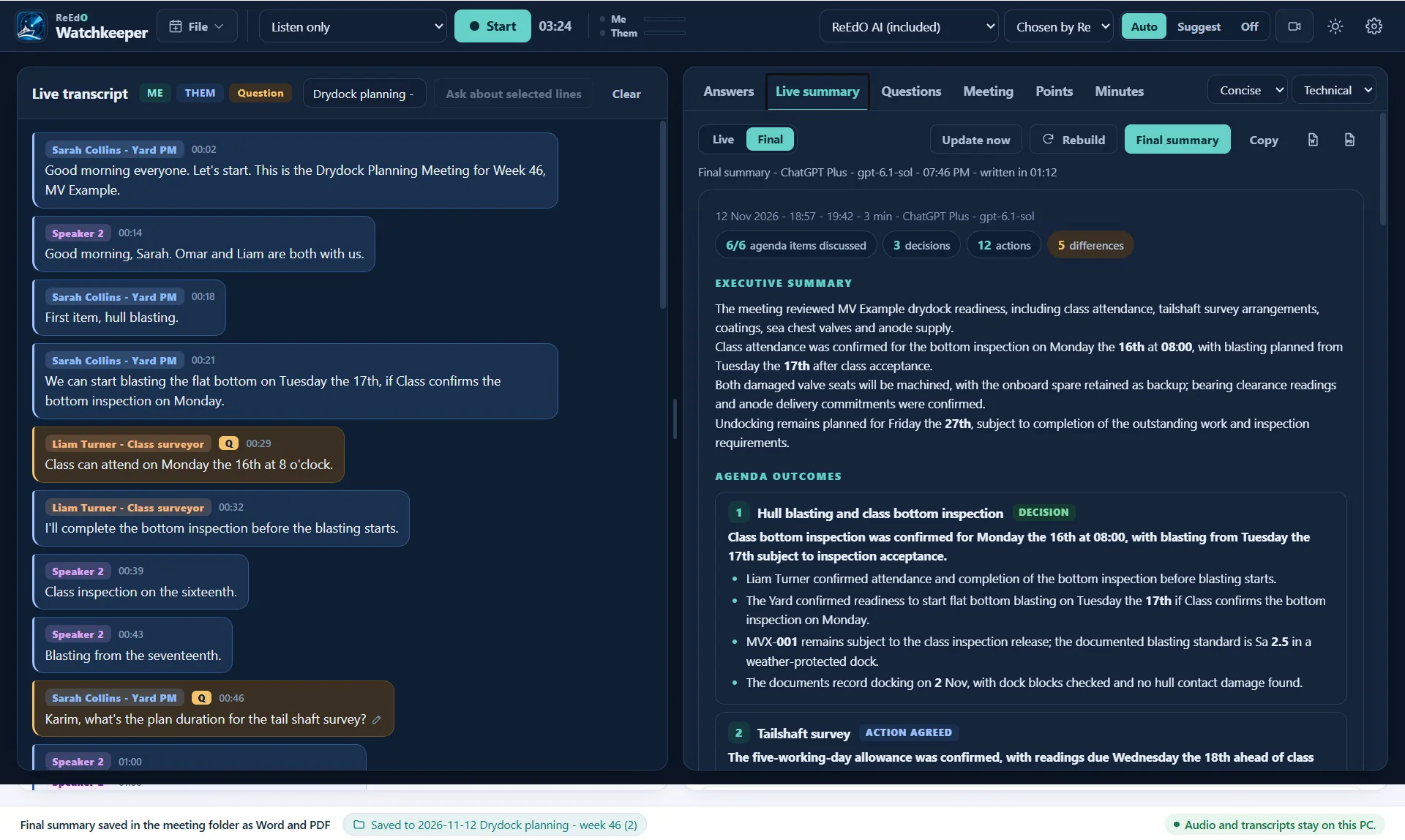
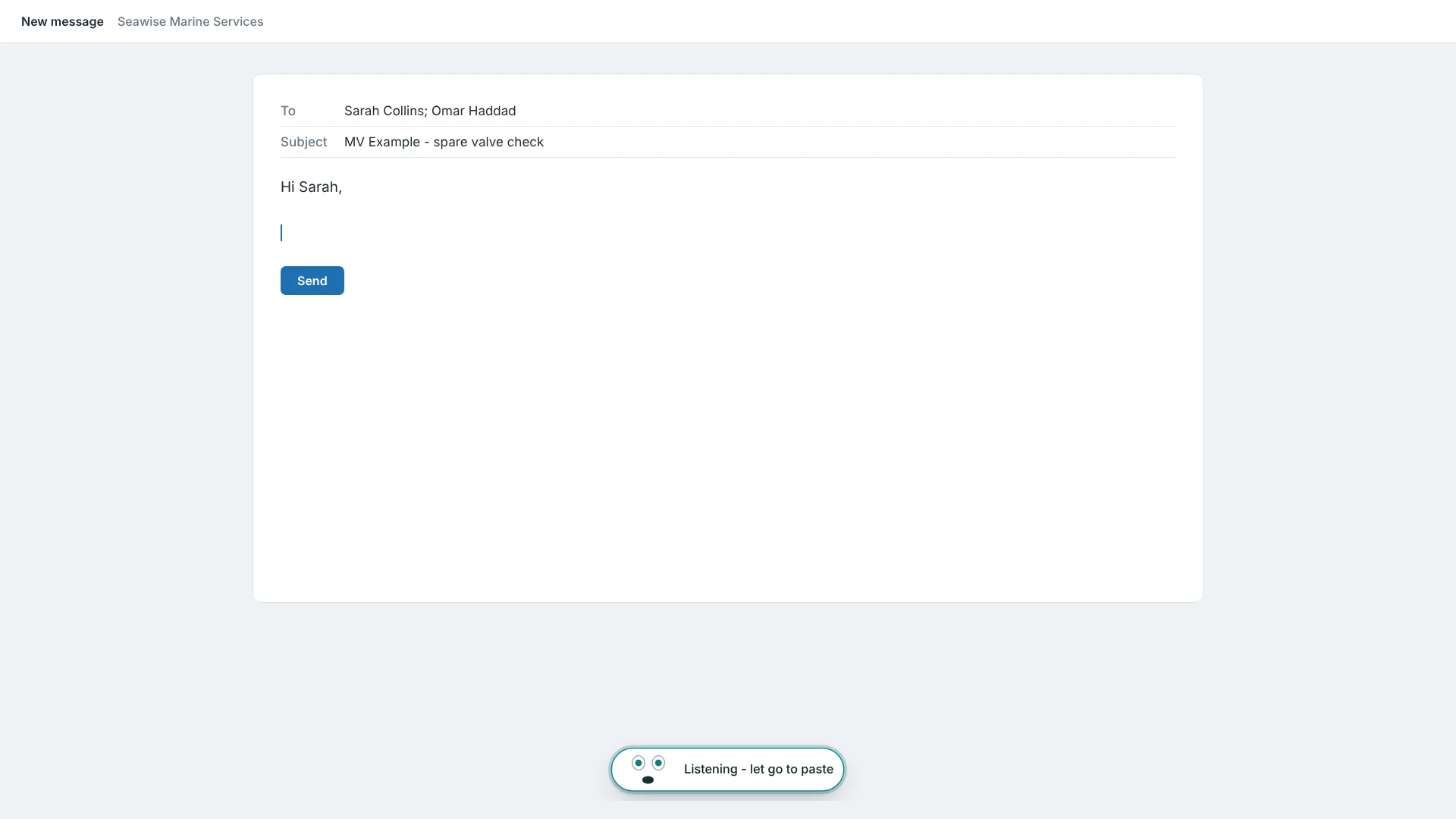
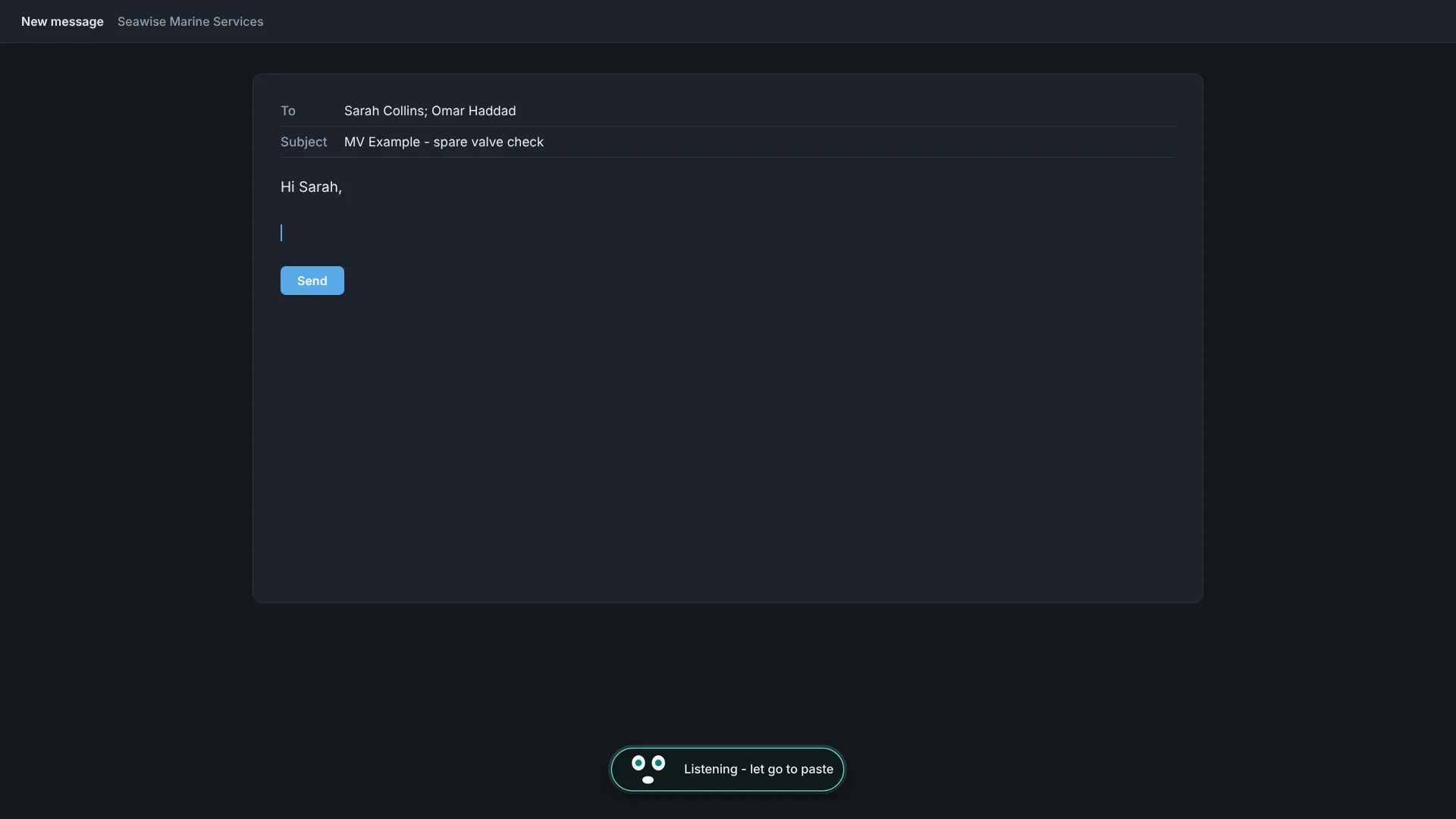
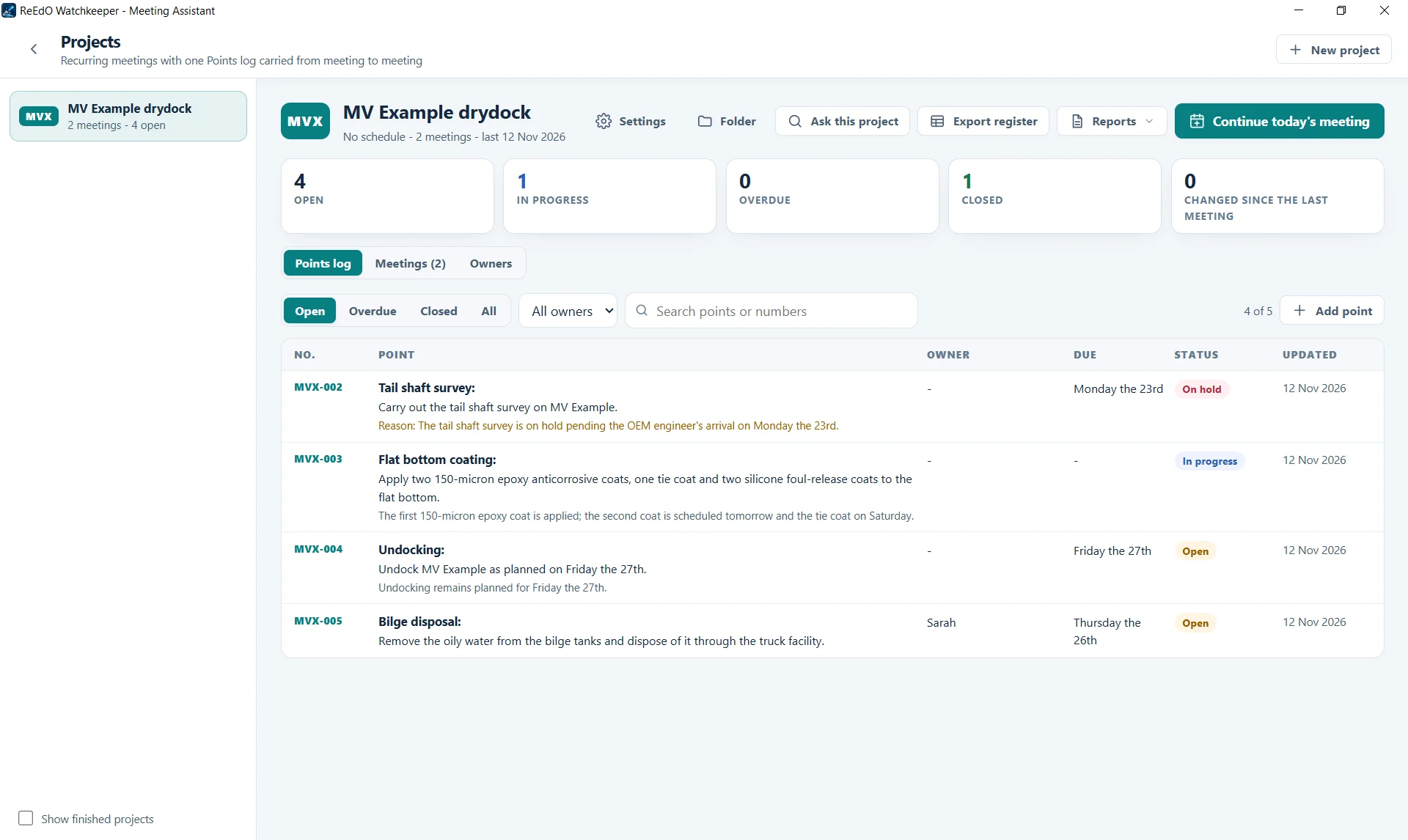
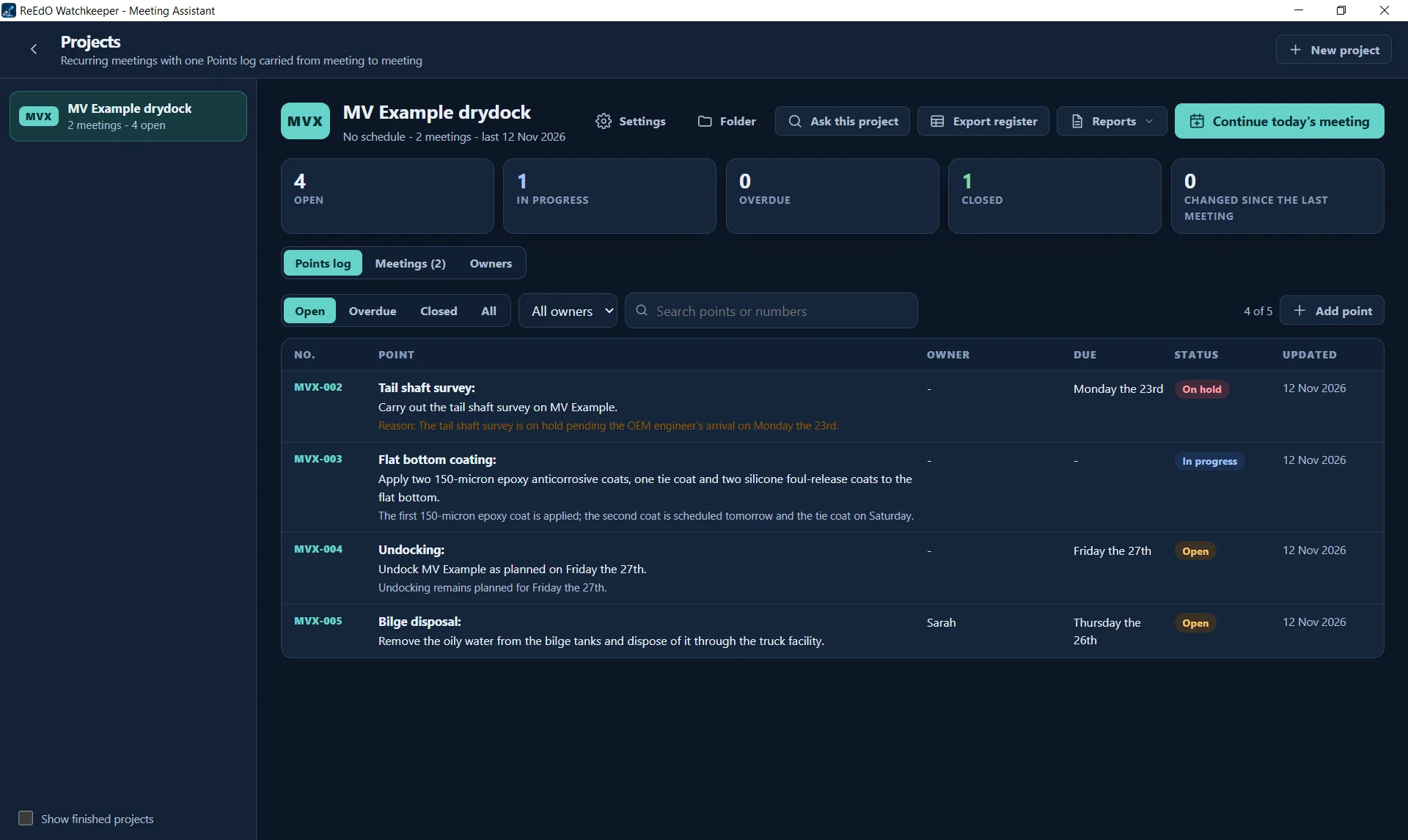
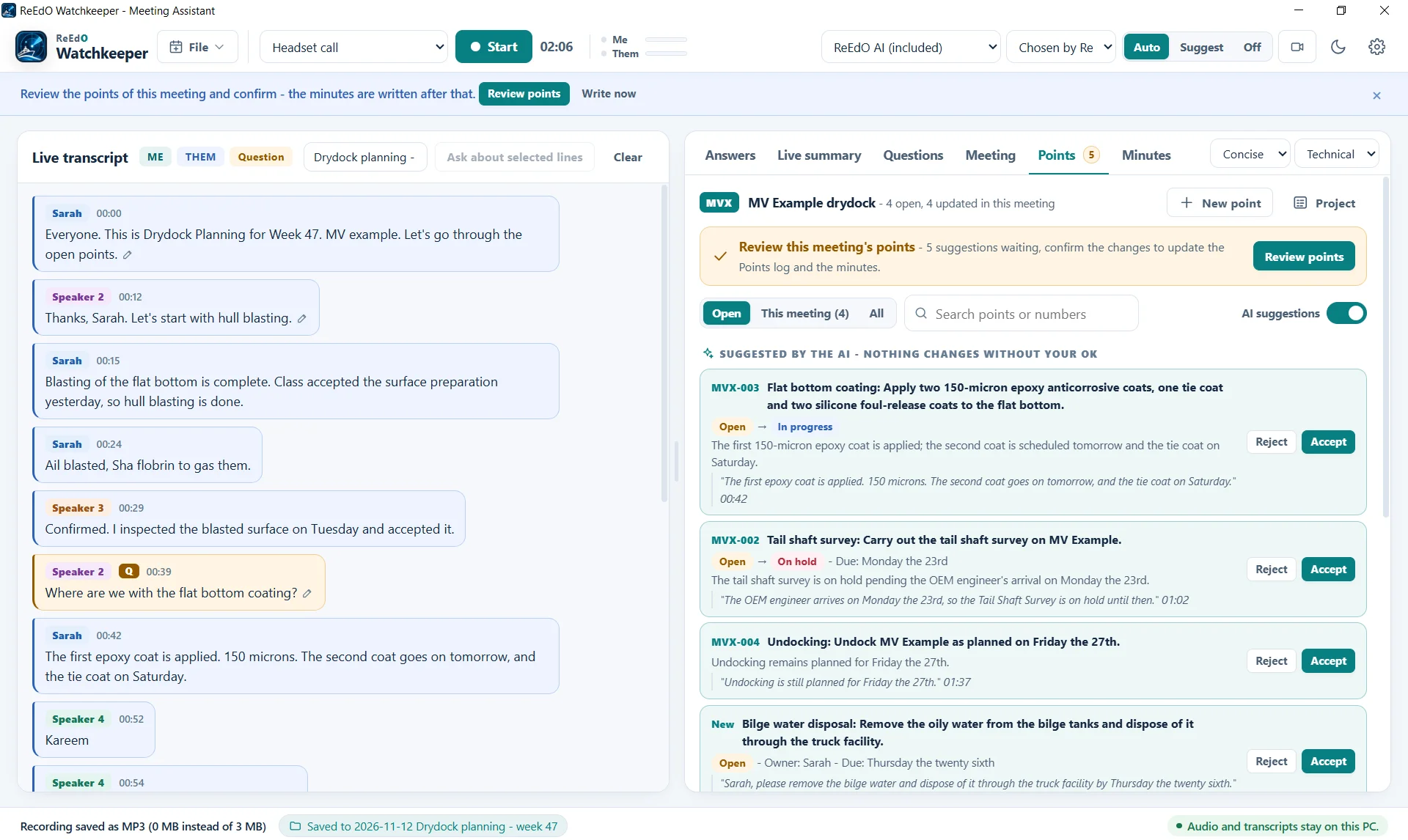
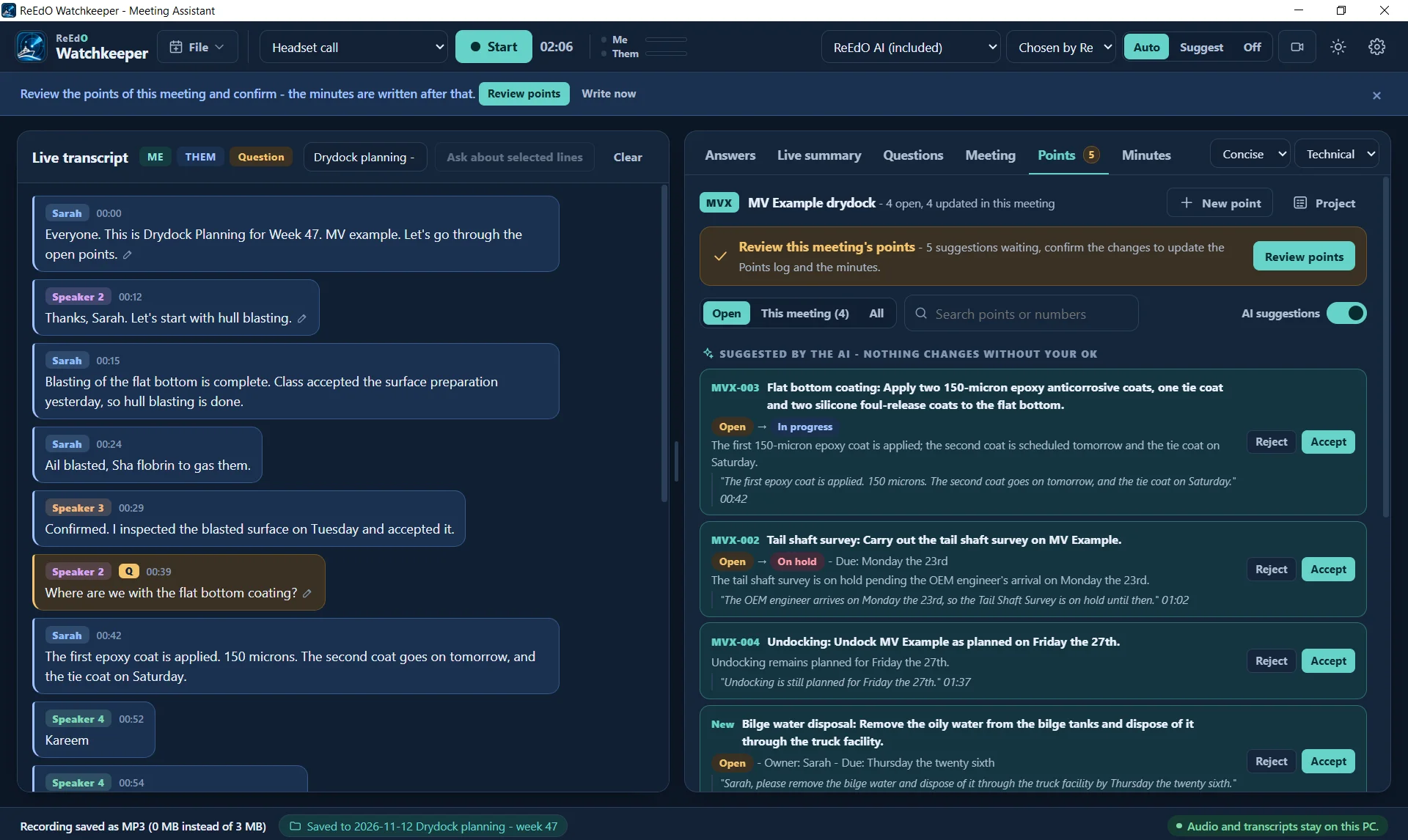
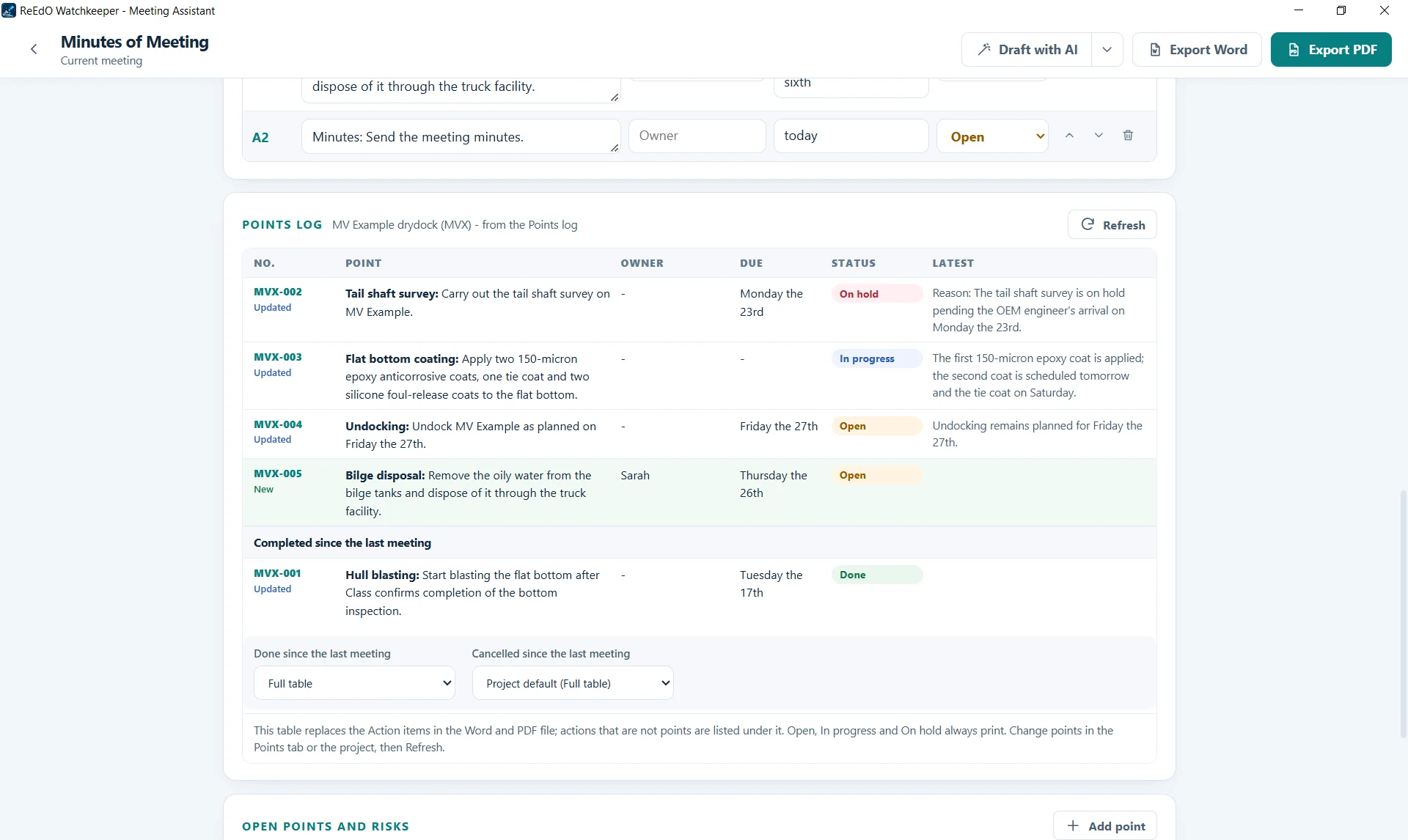
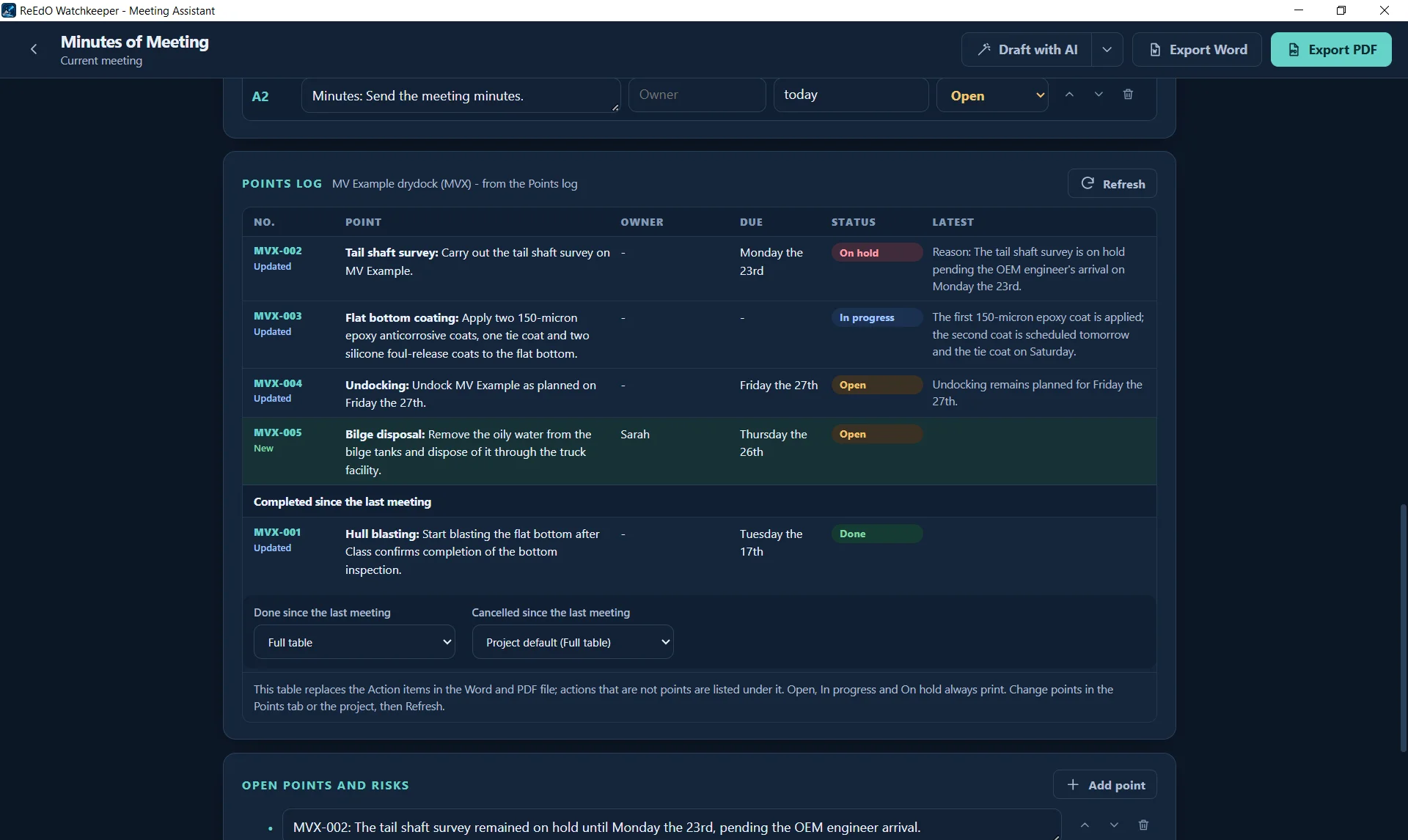
Slide 1 of 12
Levels
Choose the level that fits your meetings.
Every level includes ReEdO AI, with no separate AI account. Talk is an add-on for any level.
Scroll horizontally to see all columns.
| Feature | Standard | Pro | Premium |
|---|---|---|---|
| Meetings and answers | |||
| Online meetings, live transcript | Yes | Yes | Yes |
| Ask AI and Suggest mode | Yes | Yes | Yes |
| Live summary and final summary | Yes | Yes | Yes |
| Minutes, Word and PDF | Yes | Yes | Yes |
| Recording (MP3) and meeting workspace | Yes | Yes | Yes |
| Corrections table and review of mis-heard words | Yes | Yes | Yes |
| Three versions per transcript line: live, second listening and merged, with clean-up listen | Yes | Yes | Yes |
| Fixed after-meeting steps: review words and names, then points where applicable, before summary and minutes | Yes | Yes | Yes |
| Bold-subject minutes and points | Yes | Yes | Yes |
| Participants filled in from named speakers | - | Yes | Yes |
| Auto answers | - | Yes | Yes |
| Camera view | - | Yes | Yes |
| Questions tab and auto questions | - | Yes | Yes |
| Meeting brief from your documents | - | Yes | Yes |
| Speaker labels and People book | - | Yes | Yes |
| Your own AI accounts next to ReEdO AI | - | Yes | Yes |
| In the room and hybrid meetings, My voice | - | - | Yes |
| Across your meetings | |||
| Ask my meetings and open actions across meetings | - | - | Yes |
| Draft minutes with options and saved styles | - | - | Yes |
| Corrections import and export (Excel) | - | - | Yes |
| Projects: Points log, Start today's meeting, Points tab, Review points, project register (Excel/PDF), weekly and monthly reports | Read and export only | Read and export only | Yes |
| Everyone | |||
| Backup and Restore | Yes | Yes | Yes |
| Talk (dictation anywhere) | Add-on | Add-on | Add-on |
| ReEdO AI hours per month | 15 | 30 | 60 |
| Online transcription minutes per month (Arabic meetings, English live text) | 60 | 180 | 360 |
| Price (fixed, same for every customer) | USD 10 / month | USD 20 / month | USD 30 / month |
- One installer for everyone. The level comes from your licence.
- Your data is never locked. After a downgrade or a trial, every meeting, summary, minutes file and People book entry still opens and exports.
- Talk is an add-on that can be added to any level.
- Running low on online transcription? Top up with 120 extra minutes for USD 5, on any plan.
- Locked features show a Pro or Premium badge, and a click opens the upgrade card. You can try the next level for up to 3 days.
- Projects stay readable and exportable on every level. Starting a project meeting, the Points tab, AI suggestions, reviews and AI reports need Premium.
- "-" means not included.
Video tour
See it in under a minute.
Short videos, one idea each. We add new ones as we record them.
-
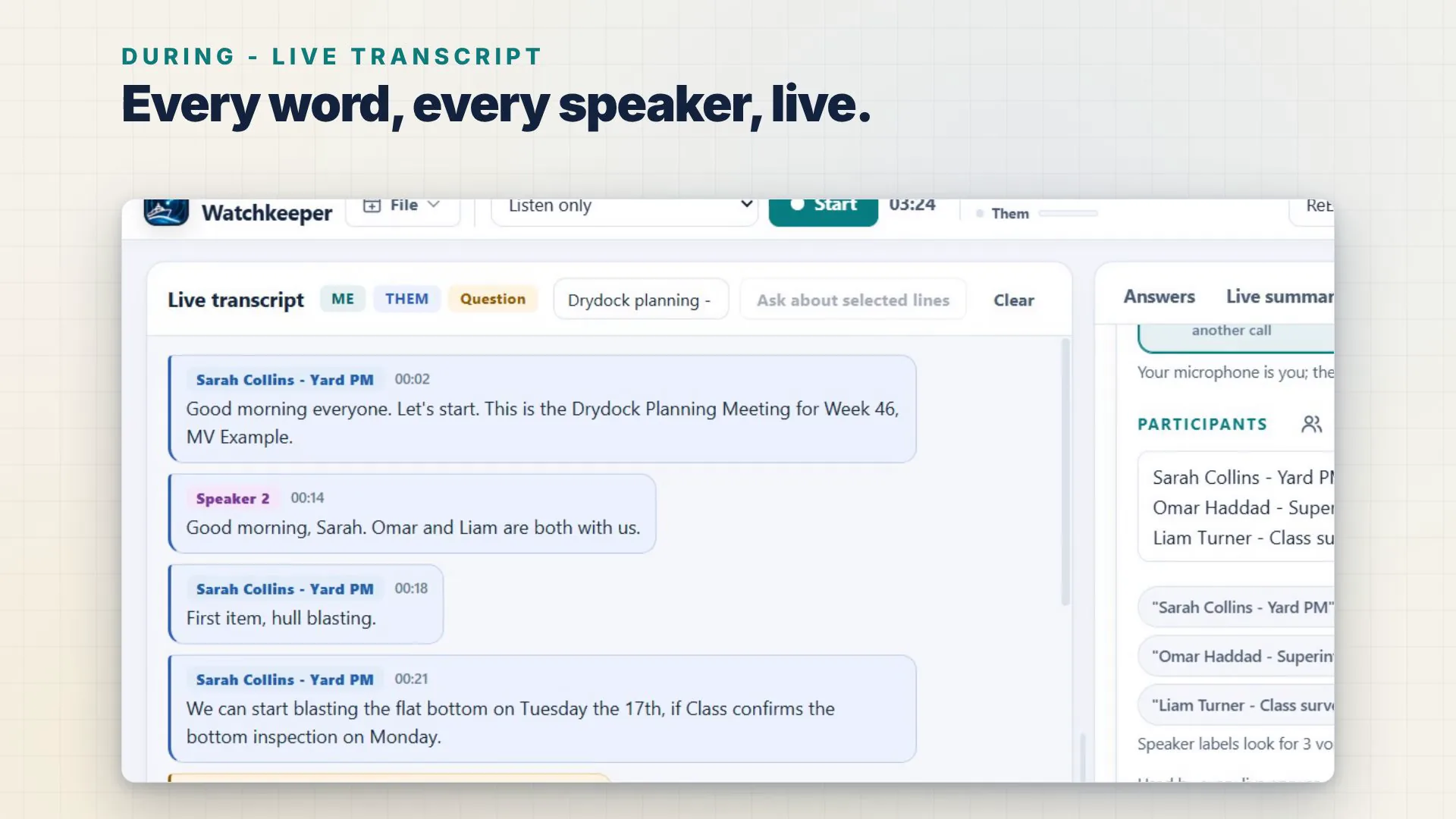
Watchkeeper in 60 seconds
The whole idea: prepare, run and finish a meeting.
-
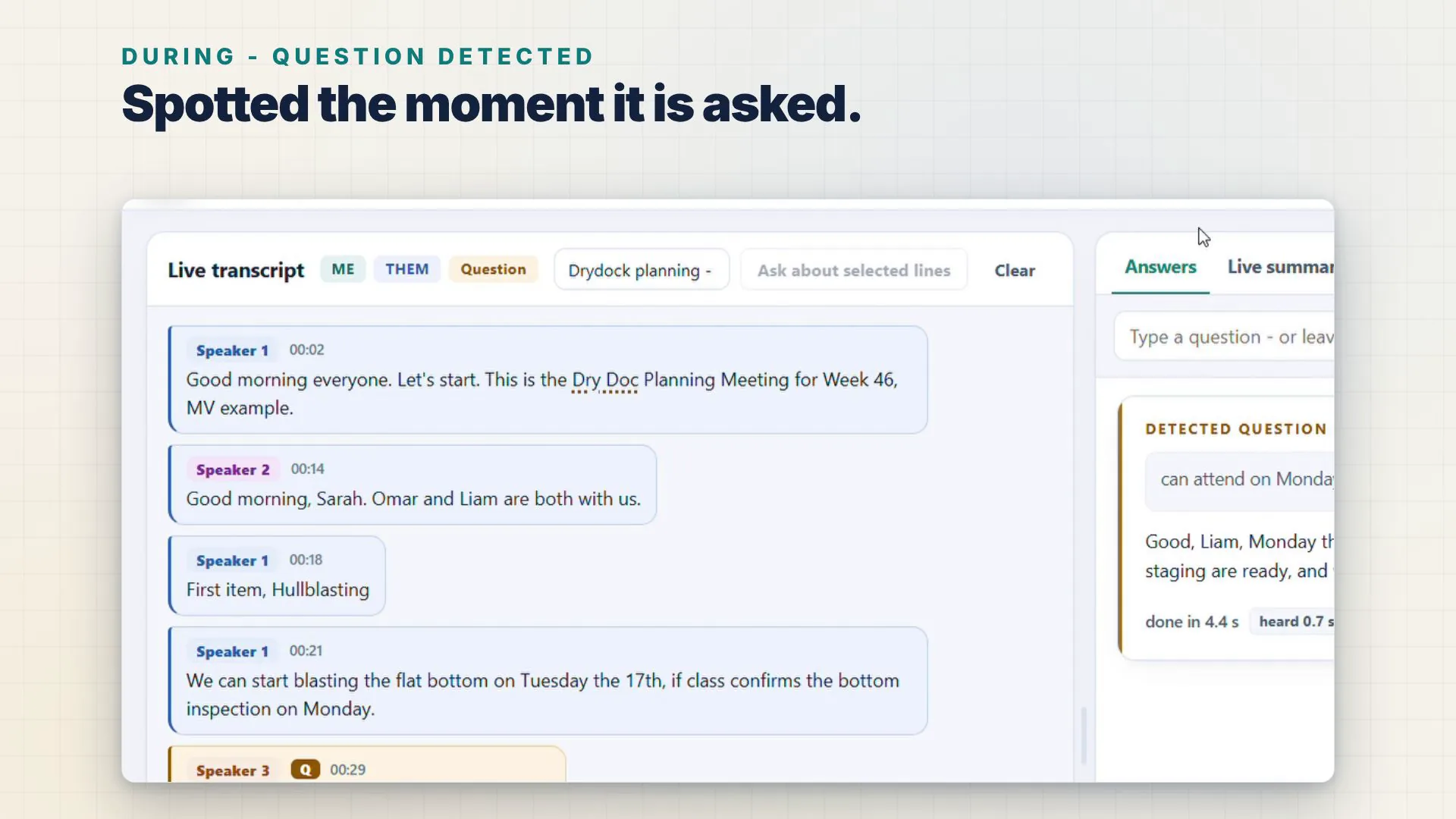
Live answers and Auto / Suggest
A question is asked; the answer is ready in seconds.
-
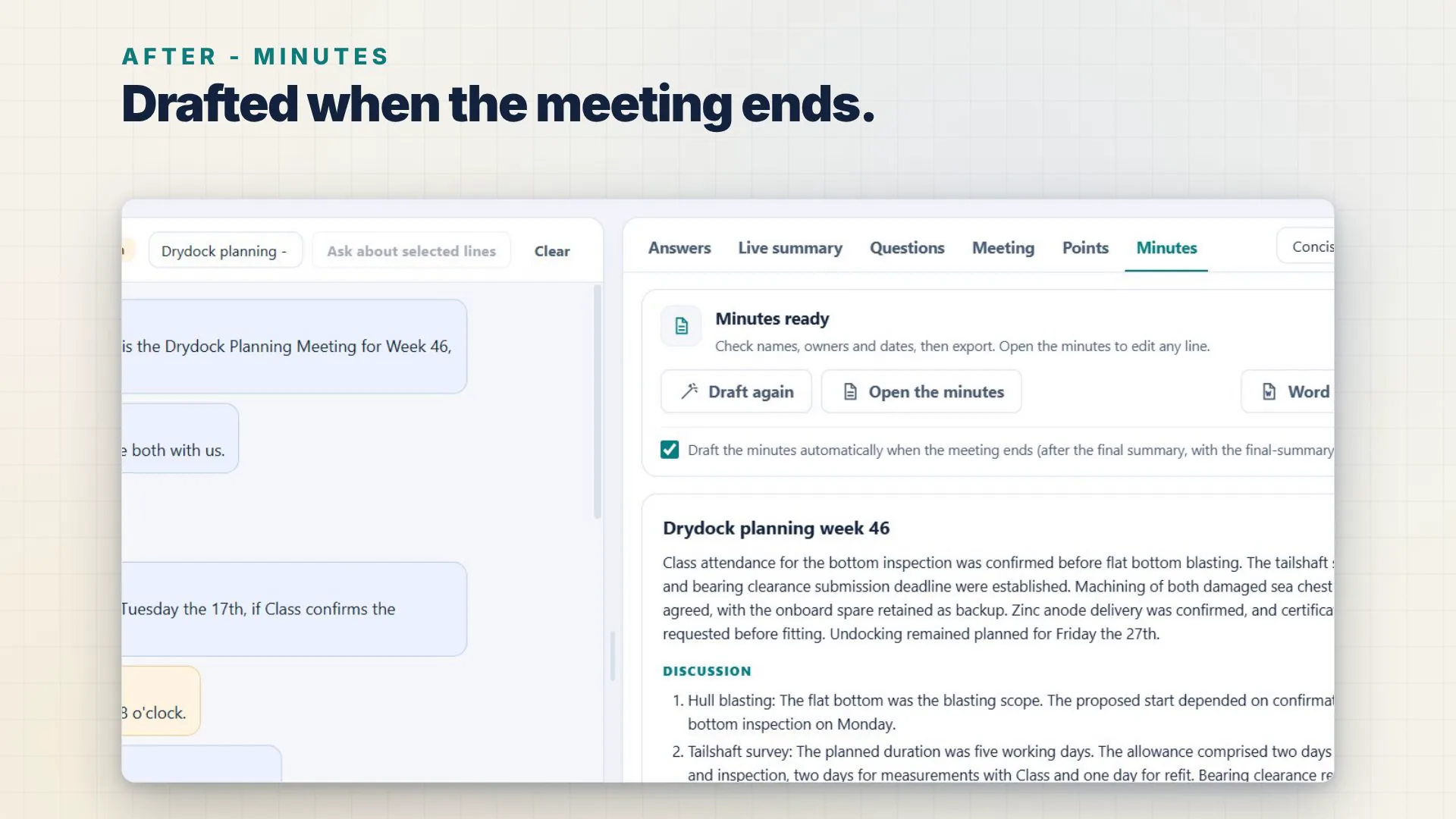
Minutes in Word and PDF
Final summary and minutes, styles and logo.
-
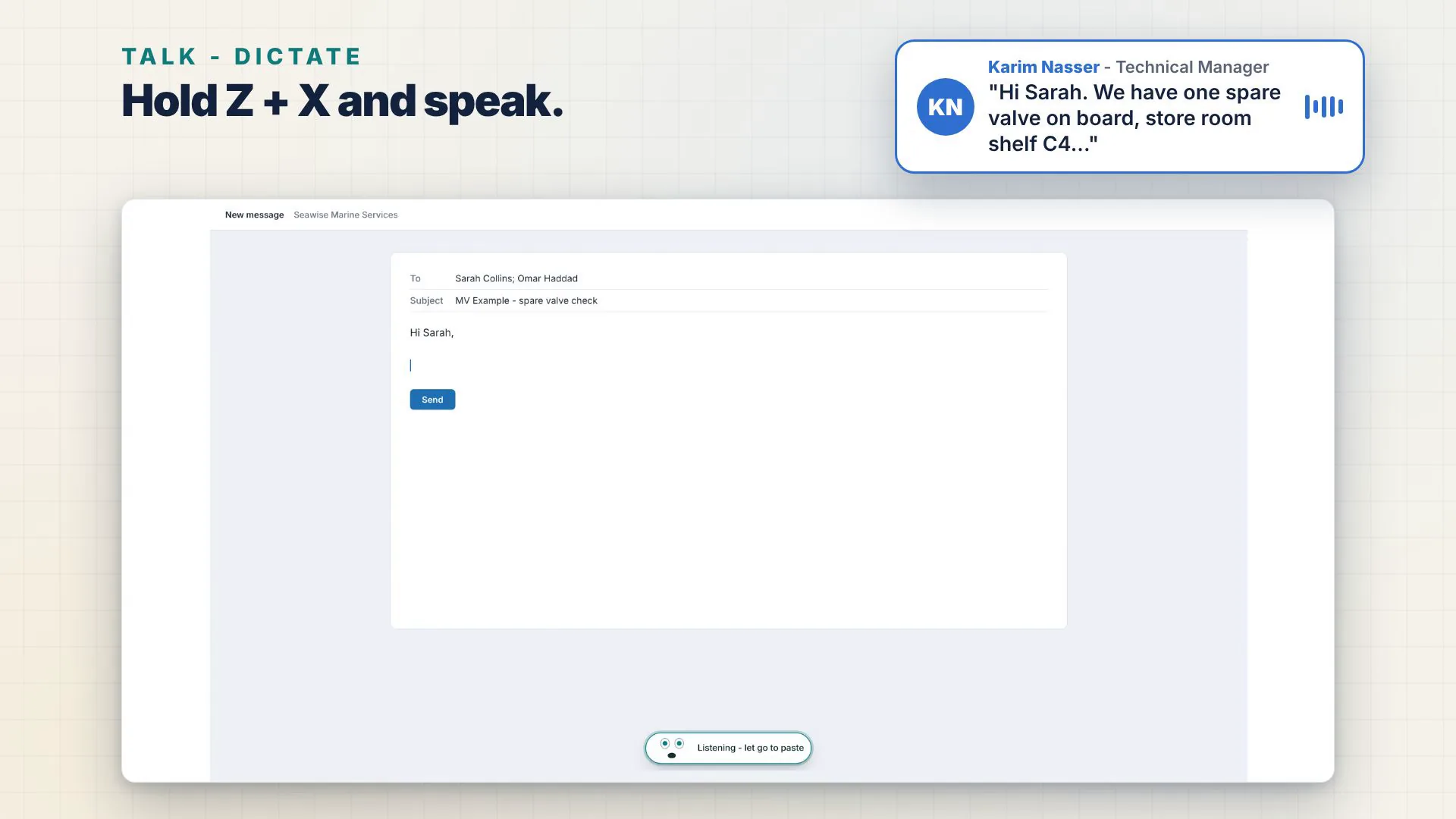
Talk: dictate anywhere
Hold Z and X, speak, let go.
All videos are live, with captions available in the player. Nothing here pretends to play before it exists.
Questions
Good to know.
How do I open the setup wizard again?
Settings > About > Setup wizard. It opens at the step where you stopped, and you can skip any step.
I skipped a step in the wizard. Is anything missing?
No. Watchkeeper works without it. The last wizard screen lists skipped steps with "Do it now", and every setting is also in Settings.
Can I try Pro or Premium before I decide?
Yes. Settings > About > Try for up to 3 days sends a request; you get a trial code by e-mail once it is approved. Your meetings and data stay when the trial ends.
How do I see which AI Watchkeeper is using?
Settings > AI providers. The first line says "AI in use: ReEdO AI" or "AI in use: Your own AI".
A step after the meeting did not finish. What do I do?
Read the message on the screen: it says why. Press Retry or Merge again when the connection is back. With your own AI you can also press "Use ReEdO AI for this step". Nothing is lost while you wait.
Can I start a new meeting before the last one has finished its steps?
Yes. The last meeting waits under "Meetings waiting to finish" on the main screen. Open it later and it continues where it stopped.
My test meeting said "too short for the after-meeting steps".
Meetings with very few words (under about 60) are saved with their transcript only. Summary and minutes need a real conversation.
Support asked me for the log file. Where is it?
Settings > Privacy > Open log folder. Send the file watchkeeper.log. It contains no meeting text.
Does my audio leave my PC?
No. Speech becomes text on your PC. Only the text needed for an answer or the minutes goes to ReEdO AI, and it keeps none of it.
Does it work with Teams, Zoom and Meet?
Yes. Watchkeeper listens to the sound coming from your PC, so any meeting program works, and so do meetings in a room.
Which languages?
English meetings are written live on your PC. Arabic meetings are recorded and turned into a transcript, summary and minutes after the meeting. Both are requested once through Settings > About > Request cloud speech.
Do I need my own AI account?
No. ReEdO AI is included in every plan. Pro and Premium can add their own accounts too.
What if I am offline?
Transcription and recording keep working. AI answers return when the connection does. The licence also works offline for 14 days.
Can I try it first?
Yes. Install it and request a trial from the app. Higher levels can be tried for up to 3 days.
Does the AI change what people said?
No. Watchkeeper keeps three versions of each finished line: live, second listening and merged. If the versions differ, it merges them using only words that were heard or names from your meeting. An invalid merge leaves the live text intact. Hover a line to see every version.
Can it carry open actions from one meeting to the next?
Yes, with Projects (Premium). Each open point keeps its number and history until it's closed, and today's meeting starts with the open points on the agenda.
Are the minutes written before I check the names?
No. After Stop, the steps run in a fixed order: clean-up and merge, your review of words and names, then the project reasoning pass and your review of points where applicable. Only then are the summary and minutes written with your corrections.
Put your next meeting on watch.
Install in minutes. Your first minutes the same day.